
Saved Searches
Learn how to save, organize, and manage your job and company searches so you can quickly re-run them, set up email alerts, and connect webhooks.
Want to keep track of a search you run often? Save it so you can re-run it anytime, get notified of new results, or push data to external tools via webhooks.
How to save a search
Open a new job search or company search and configure your filters.
Click the green Search button in the top right corner to run the search.
Once results appear, click the orange Save button below the filters.
Your search is now saved and you'll be redirected to its dedicated page.
A name is automatically generated based on the filters you selected. You can rename it at any time — see Rename a saved search below.
View your saved searches
Go to your Home page. The Your saved searches section shows all your saved searches, including:
- Search name and type (Job Search or Company Search)
- Who created it
- When it was last updated
- Whether email alerts or webhooks are active
You can filter the list by name using the search box, or filter by owner using the dropdown.
Re-run a saved search
Click on any saved search from the Home page to open it. The search runs automatically with its saved filters, showing you the latest matching results.
Rename a saved search
On the saved search page, click the search name in the breadcrumb at the top of the page. Type a new name and press Enter. The name is updated immediately.
Edit search filters
You can update the filters on a saved search at any time:
- Open the saved search from your Home page
- Add, remove, or modify any filter
- A banner appears indicating your filters have changed
- Click the orange Save button to persist the updated filters
Actions menu
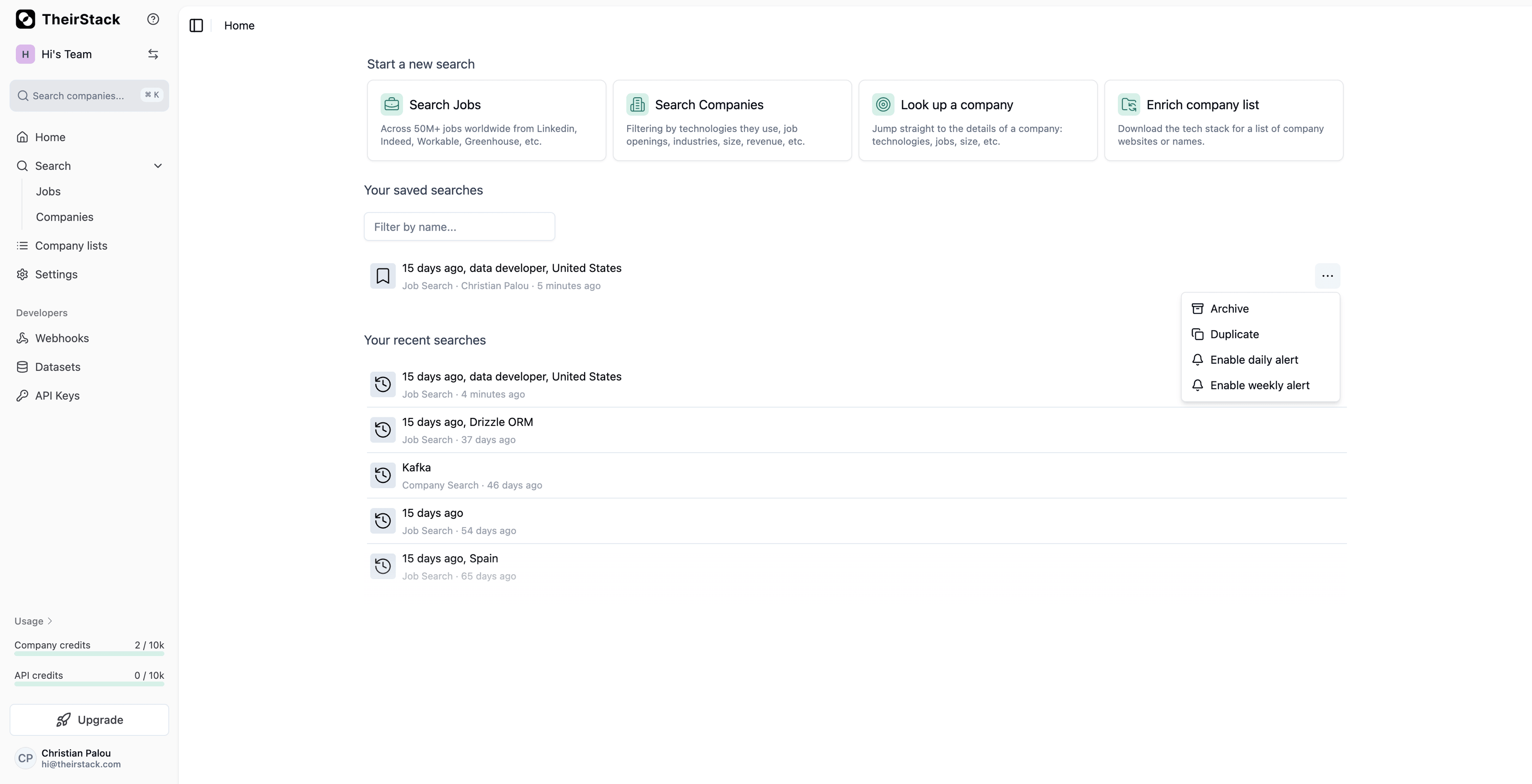
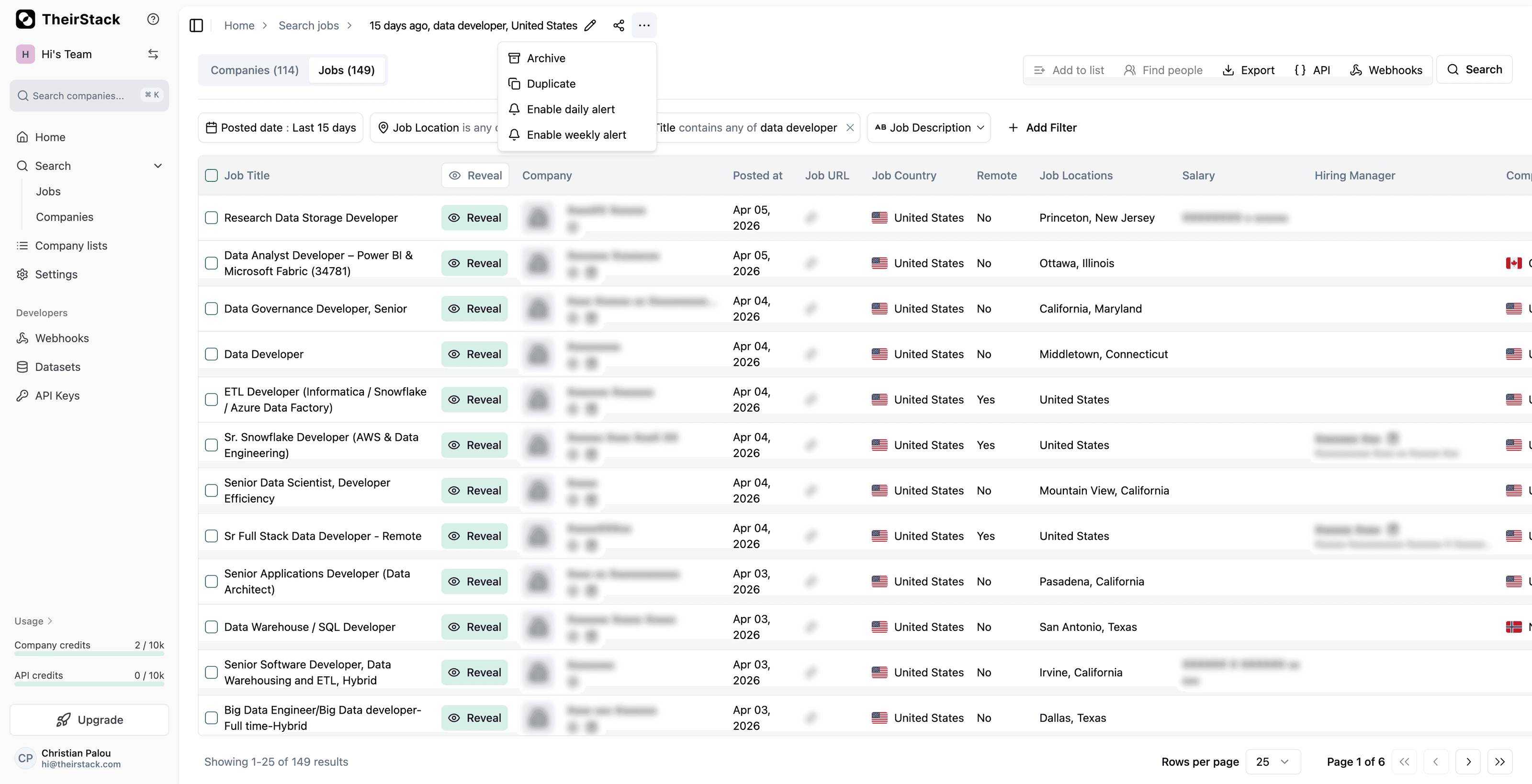
Every saved search has a three-dot ⋯ menu with quick actions. You can access it in two places:
-
Home page — next to each search in the Your saved searches list.
-
Detail page — next to the share button in the breadcrumb bar.
Archive a saved search
To remove a saved search you no longer need:
- Click the three-dot menu next to the search (from the Home page or the detail page)
- Select Archive
If you archive from the detail page, you'll be redirected back to Home. If the search has active webhooks, you'll need to disable them before archiving.
Duplicate a saved search
To create a copy of an existing search:
- Click the three-dot menu next to any saved search (from the Home page or the detail page)
- Select Duplicate
A new search is created with the same filters and a "(copy)" suffix in the name. A toast notification appears with a link to open the new search.
Next steps
- Set up email alerts to receive daily or weekly notifications when new results match your search.
- Connect webhooks to automatically push new results to external tools like Airtable, Google Sheets, or HubSpot.
How is this guide?
Last updated on
Filtering out non-tech jobs
Find only tech jobs in TheirStack using job title keywords and technology filters — includes ready-to-use keyword lists for 60+ technical roles.
Email Alerts
Learn how to set up daily and weekly notifications to get fresh job or company opportunities delivered straight to your inbox, so you never miss out on potential prospects again.