
Send companies to your CRM
Send companies from a TheirStack search, list or signal to HubSpot or GoHighLevel without creating duplicates, choose which CRM fields TheirStack fills in, and see what each send did.
A send creates the companies your CRM does not have and fills in the empty fields of the ones it has. A company already in your CRM is never created twice. Anyone in the workspace can send right after connecting, with the defaults of each CRM: HubSpot or GoHighLevel.
Send one company
Click Send to HubSpot or Send to GoHighLevel on the company's profile. TheirStack sends it right away and tells you whether it created or updated it, or why it can't send it.
The button changes with what your CRM has:
| The button says | When |
|---|---|
| Send to HubSpot, Send to GoHighLevel | Your CRM does not have the company |
| Update in HubSpot, Update in GoHighLevel | Your CRM has it and TheirStack has something new to write. Hover over the button to see which fields. |
| View in HubSpot, View in GoHighLevel | Your CRM has it and there is nothing new |
A change in the number of job postings doesn't count as new on its own, but every send brings it up to date.
Send several companies
- Select companies in a company search or a company list.
- Open the HubSpot or GoHighLevel menu and click Send to HubSpot or Send to GoHighLevel.
- Check how many companies TheirStack will create, how many it will update and which ones it can't send, then confirm.
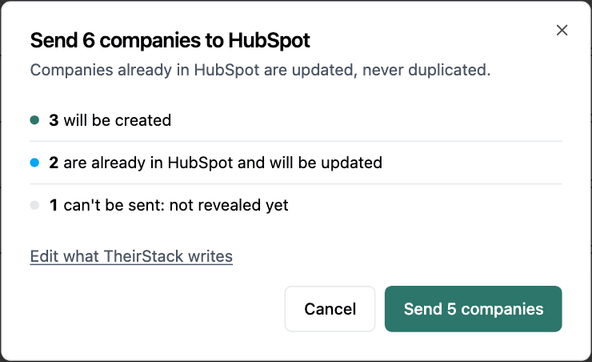
You can send up to 1,000 companies at once. Two kinds of company can't be sent:
- Companies you have not revealed. Reveal them first.
- Companies without a domain, because TheirStack could not tell whether your CRM already has them.
Right before creating a company, TheirStack looks for it in your CRM once more, so a company someone added since the last sync is updated instead of duplicated.
Send companies from an AI assistant
Ask an assistant connected to TheirStack's MCP server to send the companies of a search or a list, for example "Send the companies in my Q3 targets list to our CRM". It tells you how many companies the send would create, update or skip, and your client asks you to confirm before anything is written. The same rules apply as in the app. Only companies you revealed are sent, up to 1,000 at once, with the fields chosen in the settings.
Send the companies your signals find
A new account stays in the feed until someone sends it.
- To send one account, open it in the feed and click Send to HubSpot or Send to GoHighLevel in the bar above it. If you have not revealed the company, click View company first. Opening a company you have not revealed uses 1 company credit.
- To send several, click Add to list on each account and open that list. Reveal the companies, select them and send them from the CRM menu.
Sending a company again brings its TheirStack fields up to date.
The signals timeline
When your signals have found a company, a send writes them to its TheirStack signals timeline field. It reads like the account's timeline in Signals, with the signals by day, newest first, each with what TheirStack found and the job ads and technologies behind it.
| Link | What it opens |
|---|---|
| The title of a job ad | The job ad in TheirStack, with its whole description |
| Original ad | The page where the job ad was posted, with no TheirStack login |
| View company | The company in TheirStack |
| View signal | The signal in TheirStack |
| Open search | The signal's saved search |
In HubSpot it is a rich text property. GoHighLevel shows it as plain text, so each link is written as its address after its words.
A company with no signals doesn't get the field. The timeline shows the date you sent it and doesn't change on its own, so send the company again to bring it up to date. When a timeline is too long for your CRM, its oldest signals are left out and a link at the end takes you to the company.
The field is sent by default. In the settings you can choose another field for it, or Not sent.
Change what TheirStack writes
A workspace owner can change the defaults. Go to Settings → Integrations, open your CRM and click Edit settings under Sending to HubSpot or Sending to GoHighLevel. The settings take four steps:
- How to send. Create and update companies (the default), create new companies only, or update existing companies only.
- Map fields. Each TheirStack field goes to a field in your CRM, and the common ones start with one chosen. Pick another field, or Not sent to leave it out. For each field you send, choose whether to keep your CRM's value or replace it with TheirStack's when your CRM already has one. An empty field gets TheirStack's value either way. When you keep your CRM's value, it stays as it is on later sends, even if TheirStack wrote it.
- New companies. Give the companies TheirStack creates fixed values, such as a lead source. Who owns them depends on your CRM: HubSpot or GoHighLevel.
- Review. See what a few of your companies would get, field by field, before you save. Nothing is written to your CRM until someone sends companies.
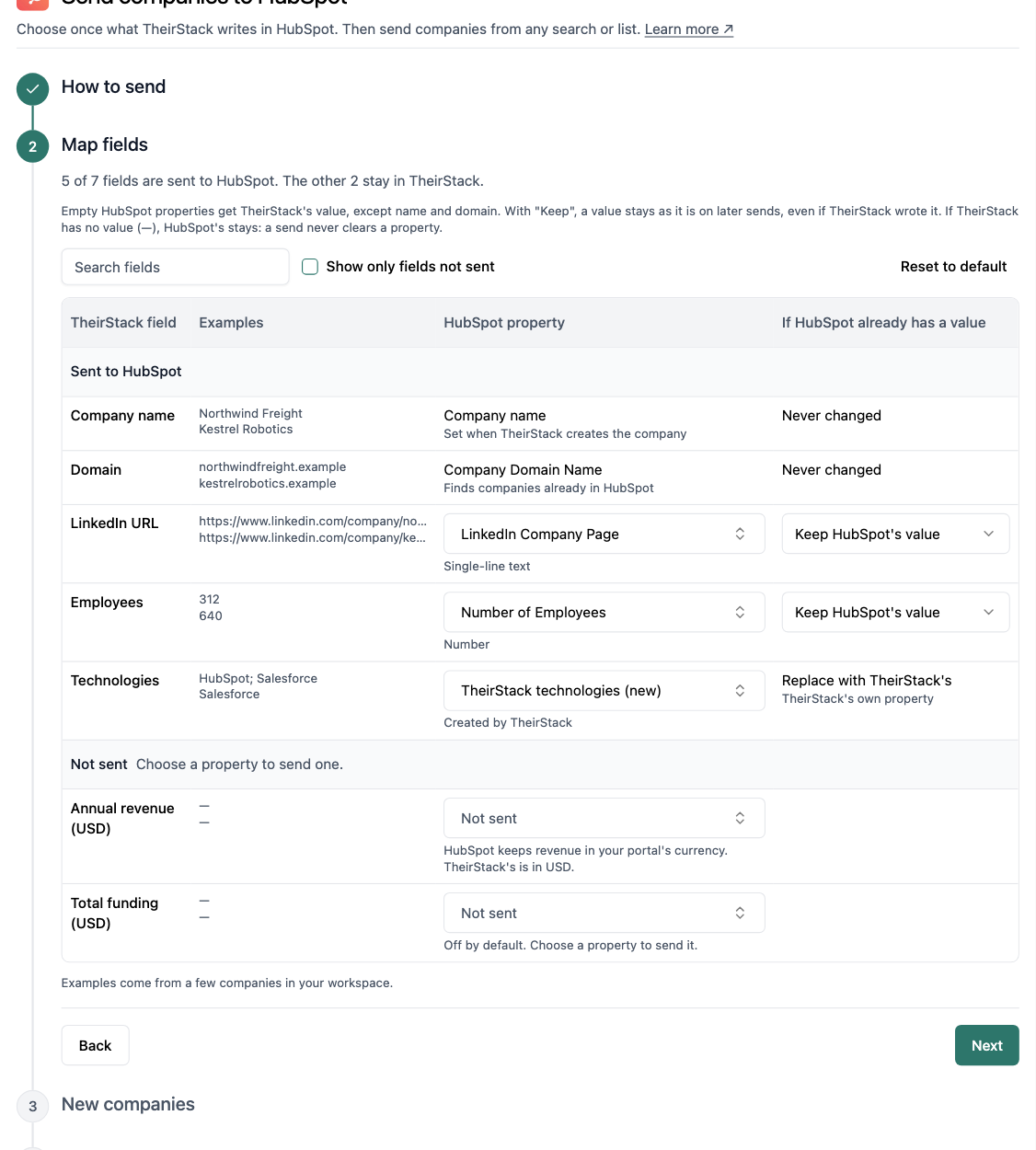
You can also change these settings from an AI assistant connected to TheirStack's MCP server. It shows you what a few of your companies would get before it saves.
See what was sent
The Sending to HubSpot or Sending to GoHighLevel section of the settings lists every send with who sent it and how many companies were created, updated or failed. Download the report of a send to see what your CRM did with each company and why it rejected any of them. The companies TheirStack creates get their CRM status in TheirStack right away, without waiting for the next sync.
Create companies in your CRM automatically
Signals never create companies in your CRM on their own. HubSpot can keep the companies it already has up to date when a signal finds something new.
To create new companies with no clicks, build the same filters in a saved search, add a webhook and connect it to your CRM with Make, n8n or Zapier. A webhook can't listen to a signal, so it finds its own matches, and its events use API credits. Look each company up by its domain before you create it, so you don't create it twice.
How is this guide?
Last updated on
CRM statuses
See each company's CRM status in Signals, in search and in the CRM list, and write the rules for statuses such as Customer or Former customer on the fields your team fills in.
Sync and disconnect your CRM
See when TheirStack syncs the companies in your CRM, when to click Sync now, what to do when a sync fails or your CRM needs reconnecting, and what disconnecting deletes.