
CRM statuses
See each company's CRM status in Signals, in search and in the CRM list, and write the rules for statuses such as Customer or Former customer on the fields your team fills in.
With your CRM connected, you see each company's CRM status across TheirStack, and a workspace owner decides what each status means. This page works the same for HubSpot and GoHighLevel. Where they differ, it links to the CRM's page.
See your CRM status in TheirStack
Every company TheirStack matched to a company in your CRM has one CRM status, such as Customer, Open deal or In CRM. A company your CRM does not hold is No CRM match.
In Signals
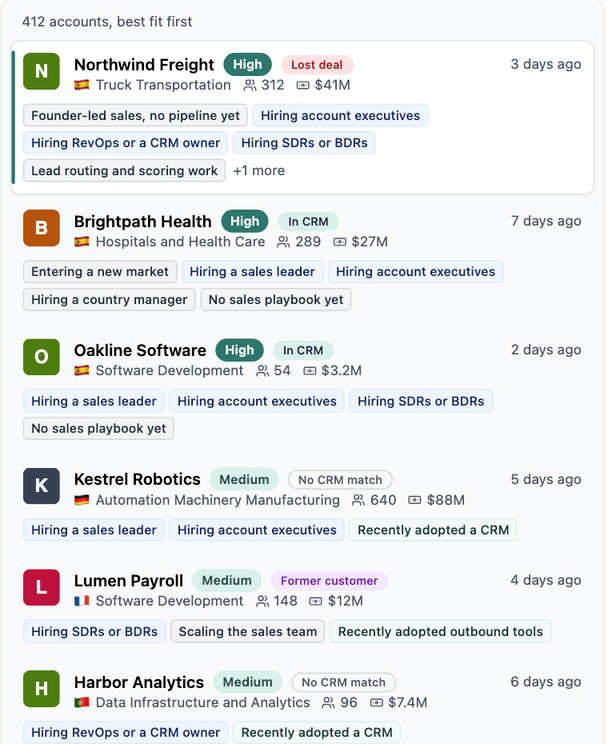
Each account in the feed shows its CRM status next to its name.
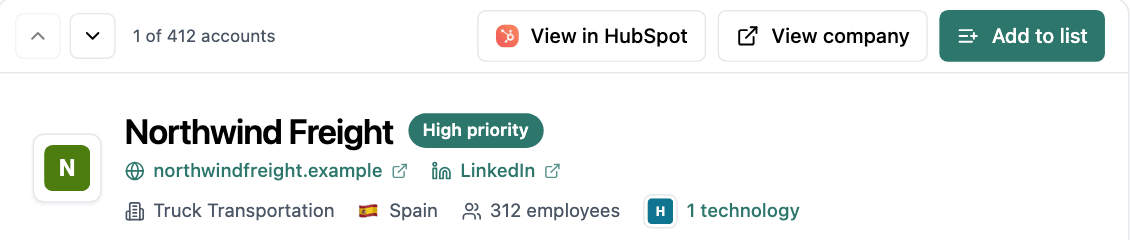
When you open an account your CRM holds, View in HubSpot or View in GoHighLevel takes you to its record.
By default, the feed hides accounts with the statuses Customer and Open deal. In GoHighLevel those statuses have no rule until you give them one, so until then the feed hides none. You can change what you see in two ways.
For every signal, add the CRM status filter above the feed. It lists your own statuses too.
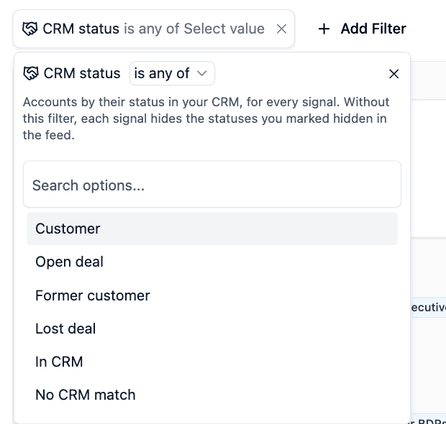
| To see | Set the filter to |
|---|---|
| Companies that are not in your CRM | is any of No CRM match |
| Customers you could sell more to | is any of Customer |
| Companies to win back | is any of Former customer |
| Everything except open deals | is none of Open deal |
For one signal, edit the signal and turn off Hide HubSpot accounts from this signal, or Hide GoHighLevel accounts from this signal. It applies while the CRM status filter is off, and your signals' filters do not change.

If the sync is behind, or your CRM needs to be reconnected, the feed warns you that the CRM statuses may be out of date.
Only matched companies can be hidden
A customer TheirStack could not match to its record in your CRM still shows in the feed, as No CRM match. If you see one, fix its match in HubSpot or GoHighLevel.
In job and company search
Add the CRM status filter to a job or company search to choose companies by their status in your CRM. It appears once your CRM is connected and lists the same statuses as Signals, your own included.
| To find | Set the filter to |
|---|---|
| Companies in your CRM with no other status | is any of In CRM |
| Everything except customers and open deals | is none of Customer and Open deal |
| Companies that are not in your CRM | is any of No CRM match |
You can save a search that uses the filter and turn on its alert. Webhooks and signals can't use it yet, so remove the filter from a search before you add a webhook to it.
A search on a status you deleted finds no companies, and the filter keeps the status's name so you can remove it. Once you disconnect your CRM no company has a status, so a search on one finds nothing.
In the CRM list
The HubSpot list or GoHighLevel list is a company list that TheirStack keeps in sync. Open it with Open HubSpot list or Open GoHighLevel list in the settings. It has one row per company in your CRM, with:
- The company's name, which links to its record in your CRM.
- Its domain and CRM status, and its owner in HubSpot.
- Whether TheirStack matched it and, if it did not, why.
- Any field from your CRM, custom ones included. Pick them in Columns.
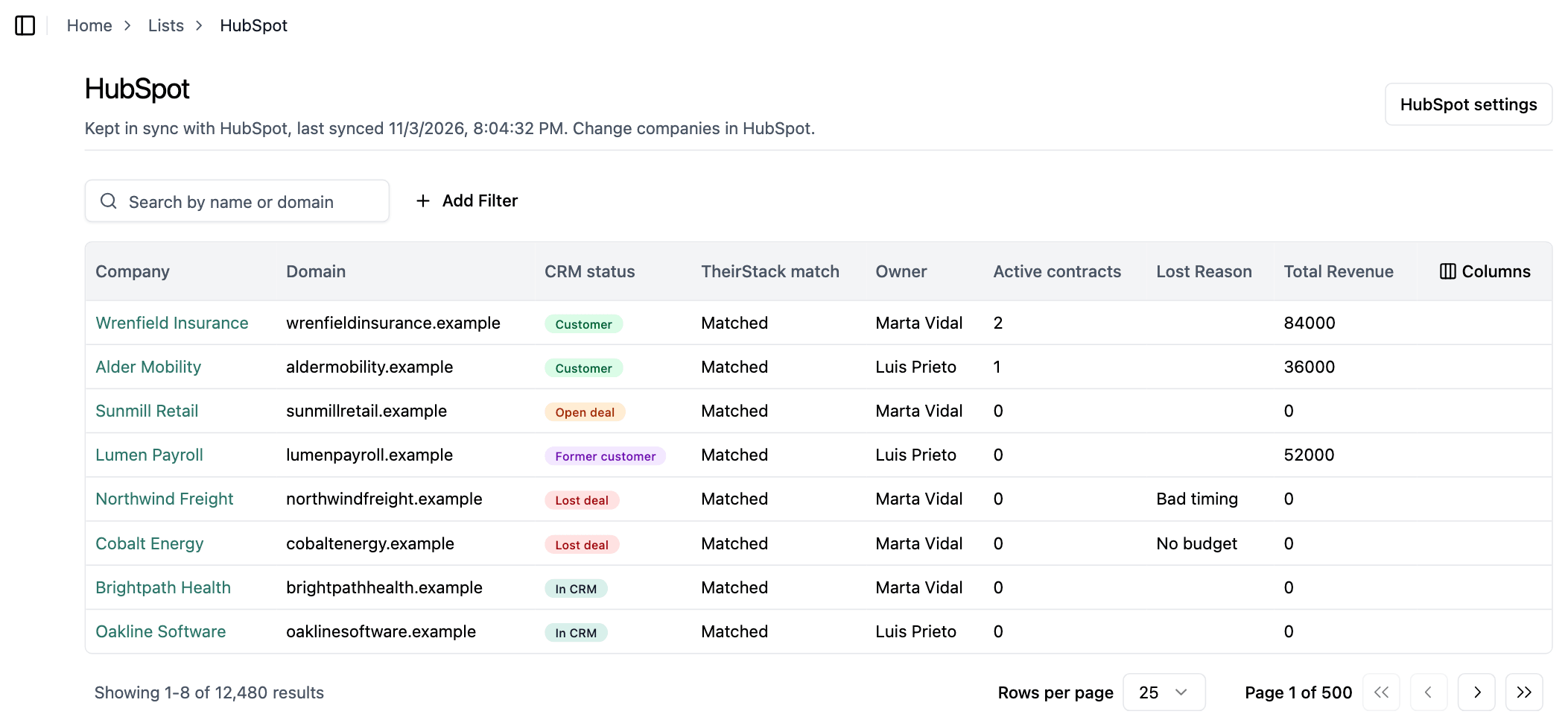
You can filter the list by CRM status or TheirStack match. It is read-only, so you change a company in your CRM and TheirStack brings the change in. To edit a copy, duplicate the list.
You can also use it in your searches like any other list, for example to filter the job or company search by the companies in your CRM. A search that uses the list leaves out the companies that are not matched.
Companies that are not matched
A company in your CRM only gets a CRM status once TheirStack matches it to a company it knows. To see the ones left out, click See why in the settings. Each CRM matches companies differently, and its page says what to fix: HubSpot or GoHighLevel. The change shows after the next sync, or right away if you click Sync now.
Define your CRM statuses
Every team tracks customers differently: a lifecycle stage, a count of active contracts, a custom field. In TheirStack you write the rule for each status on those same fields.
How the rules work
Each matched company gets one status. TheirStack checks the statuses from top to bottom, and the first one whose conditions hold gives the status. A company that meets none is In CRM, which always comes last. Every workspace starts with these:
| Status | Default rule | Signals feed |
|---|---|---|
| Customer | Set by your CRM: HubSpot, GoHighLevel | Hidden |
| Open deal | Set by your CRM: HubSpot, GoHighLevel | Hidden |
| Former customer | None until you add one | Shown |
| In CRM | Any other matched company | Shown |
The CRM statuses section of the settings lists each status with its rule, whether the feed shows it and how many companies have it. Click a count to open those companies in the list.
Edit your statuses
Only workspace owners can edit statuses.
- Go to Settings → Integrations, open your CRM and click Edit statuses.
- Rename a status, change its color, or click Add status. Turn on Hide these accounts from the signals feed for the statuses you don't want in the feed.
- Click Add condition and pick a field from your CRM. The picker shows how many companies have a value in each field, so you can tell the ones your team fills in from the ones it doesn't.
- Move the statuses up or down to decide which one wins when a company meets several.
- Read the preview. It says how many companies each status would get and which ones change.
- Click Save rules. TheirStack reads every company again and gives each one its status.
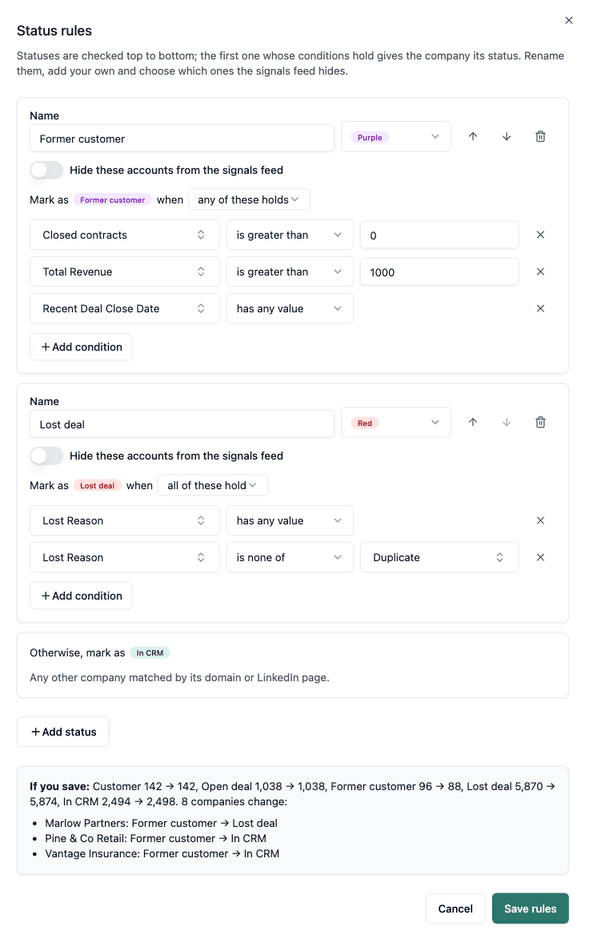
Renaming a status keeps its companies. When you delete a status, its companies become In CRM unless they meet another one.
You can also edit the statuses from an AI assistant connected to TheirStack's MCP server, for example by asking it to "make Former customer the companies with a deal won in the past". With the CRM tools it can look up your CRM's fields, preview the change and save it.
What a condition can check
| Condition | Use it on | Example |
|---|---|---|
| is any of, is none of | The values you pick | Client status is any of Active |
| is greater than, is less than | A number | Active contracts is greater than 0 |
| is yes | A yes/no field | Partner is yes |
| has any value, is empty | Any field | Churn date has any value |
When a company has no value in a field, the condition does not hold, except for is none of and is empty. You can have up to 20 statuses, each with up to 10 conditions.
Each CRM's page has a worked example on its own fields: HubSpot and GoHighLevel. A few rules hold for both:
- Put Customer above Former customer, so a company that left and came back is a Customer.
- Use any of these holds when any one of several fields proves the same thing, such as a past purchase.
- Pair is none of with has any value. A company with an empty field meets is none of, so on its own it marks every company where your team never filled the field in.
- Leave Former customer in the feed, because a new signal on a company that left is a reason to call again.
You can add the statuses your team needs, such as Partner or Competitor, and hide them so those companies leave the feed.
How is this guide?
Last updated on
CRM integration
Connect HubSpot or GoHighLevel to see each account's CRM status in Signals and search, read every CRM field in a TheirStack company list, define statuses such as Customer or Former customer, and send companies to your CRM.
Send companies to your CRM
Send companies from a TheirStack search, list or signal to HubSpot or GoHighLevel without creating duplicates, choose which CRM fields TheirStack fills in, and see what each send did.