
Signals
Signals finds the companies likely to need what you sell. Each signal is a search TheirStack keeps running, and the companies it finds land in one feed, ranked by priority, with the job ads or technologies behind each match.
Beta
Signals is in beta and turned off by default. To turn it on for your workspace, open a ticket: click ? in the app and choose Contact support.
Signals points you to companies that are likely to need what you sell, and tells you why. Each signal is a search TheirStack keeps running for you, plus what a match means for the sale. The companies your signals find land in one feed, with the job ads or technologies behind each match.
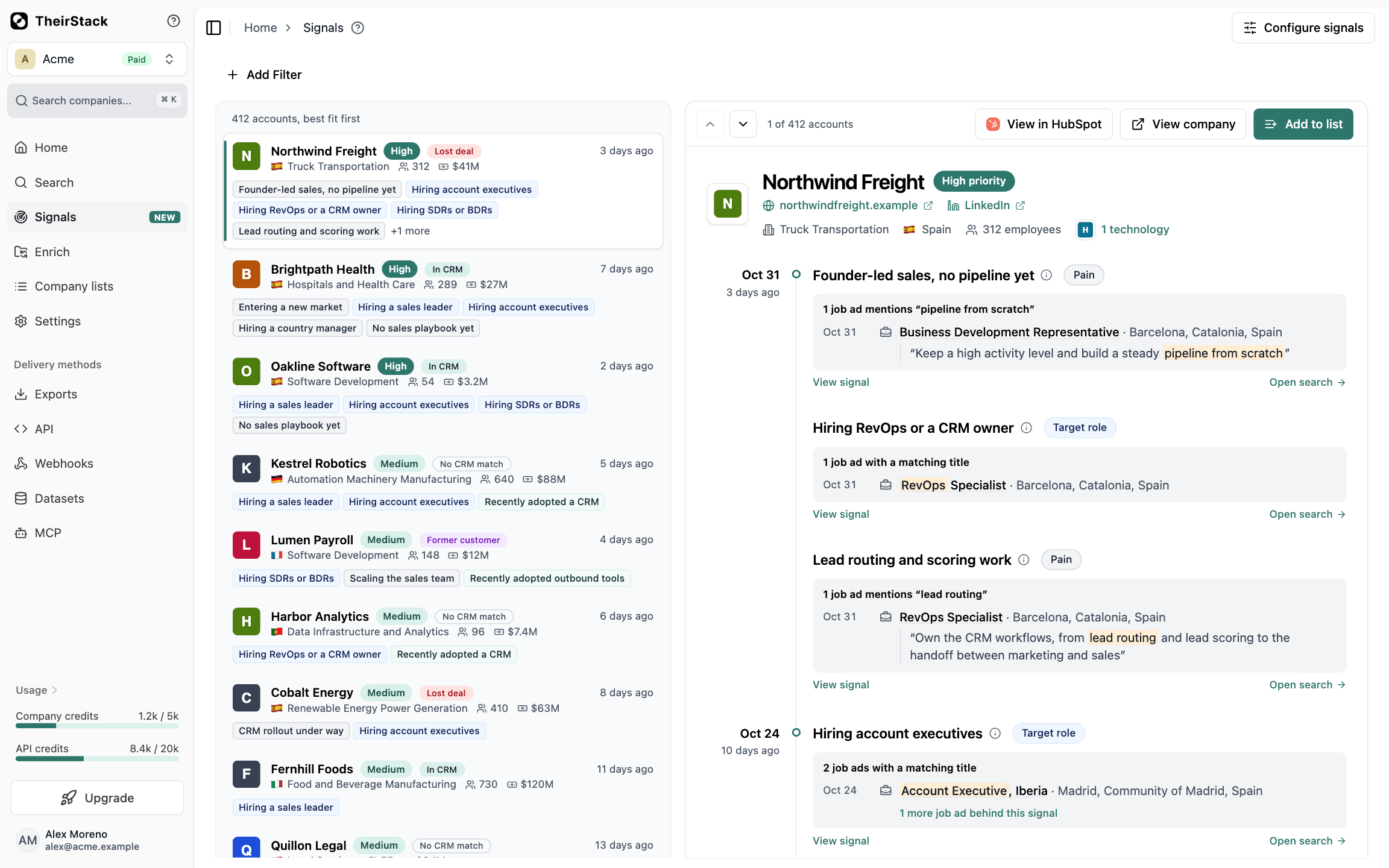
You'll find it under Signals in the sidebar. It has two pages: Accounts, the feed you work from, and Configure signals, where you create and change your signals. For ideas on what to look for, see the sales signals library. The screenshots use a sample workspace, Acme, with invented companies.
How it works
- You describe what you sell in your Brand Book, so your signals have products to pitch and your feed knows which companies to leave out.
- You create a signal from a job search or a company search, and say what it means: its name, why it points to a sale and how much it weighs.
- TheirStack runs the search to find the companies that match today. Your first accounts show up within a few hours.
- While the signal is active, TheirStack looks for new matches every few hours.
- Each company that meets at least one signal becomes an account in the feed, with a priority worked out from the weights of its signals.
Read the accounts feed
Accounts shows one card per company, best fit first. Each card has:
- The company's name, its priority and how long ago the latest evidence is from. With HubSpot connected, also its CRM status.
- Its country, industry, employees and revenue.
- The signals it meets, as tags, heaviest first.
Filter the feed by Product to pitch, by Signal or, with HubSpot connected, by CRM status. Filtering by signal keeps the company's other tags on the card. Filtering by product reads only that product's signals, so the tags and the priority can change.
Click a card to open the account beside the feed. It shows who the company is, the technologies your signals look for and every signal it meets, newest first. Under each signal you see what TheirStack found: job ads with their date and the matching words highlighted, or technologies with how many ads name them. From there you can:
- Click View signal to open the signal, or Open search to open the search behind it.
- Click View in HubSpot to open the company's record, if HubSpot holds it.
- Click View company to open its full profile. If you have not revealed the company, this uses 1 company credit.
- Click Add to list to add it to a company list.
How priority works
An account's priority comes from the weights of the signals it meets. Low counts as 1, Medium as 2 and High as 3. The score is twice the weight of its strongest signal, plus 1 for each other signal. A score of 9 or more is High priority, 6 to 8 is Medium, and anything below is Low.
| The account meets | Score | Priority |
|---|---|---|
| One High signal | 6 | Medium |
| One High signal and three others | 9 | High |
| One Medium signal | 4 | Low |
| One Medium signal and two others | 6 | Medium |
| One Low signal | 2 | Low |
Every signal a company meets shows on its card, but only these raise the score:
- A technology signal, when TheirStack found the technology with medium or high confidence.
- A job signal, when the company meets it at least twice as often as its hiring volume predicts, compared with the other companies in your feed. A large employer that posts hundreds of ads meets most hiring signals by volume alone. If TheirStack doesn't know a company's hiring volume, its job signals count.
An account with no signal that counts is Low priority. Among accounts with the same score, the newest evidence comes first.
What stays out of the feed
Your own company, and the competitors and customers named in your Brand Book, never show in Accounts, even when they meet a signal.
With HubSpot connected, the accounts with a status you hide leave the feed too, Customer and Open deal by default. That guide explains how to define your statuses and how to send companies to HubSpot.
Known limits
- The feed lives in the app. You can't export it, receive it through a webhook or send it to Slack.
- A webhook can't listen to a signal. To receive new matches somewhere else, save the same filters as a saved search and add a webhook to it.
- You can't send several accounts at once from the feed. See Send the companies your signals find.
- You can't choose how often a signal scans.
- A signal stores at most 1,000 new matches a day, and it doesn't pick up the rest later.
- You can create signals from the app or through the MCP server. Everything else happens in the app.
How is this guide?
Last updated on
Notification Preferences
Learn how to control which emails TheirStack sends you. Toggle off any notification category from Settings to stop those emails instantly.
Configure signals
Create a signal with your AI assistant or from a job or company search, choose its meaning, products and weight, turn it on or off, change its filters and delete it from the Configure signals page.