
Configure signals
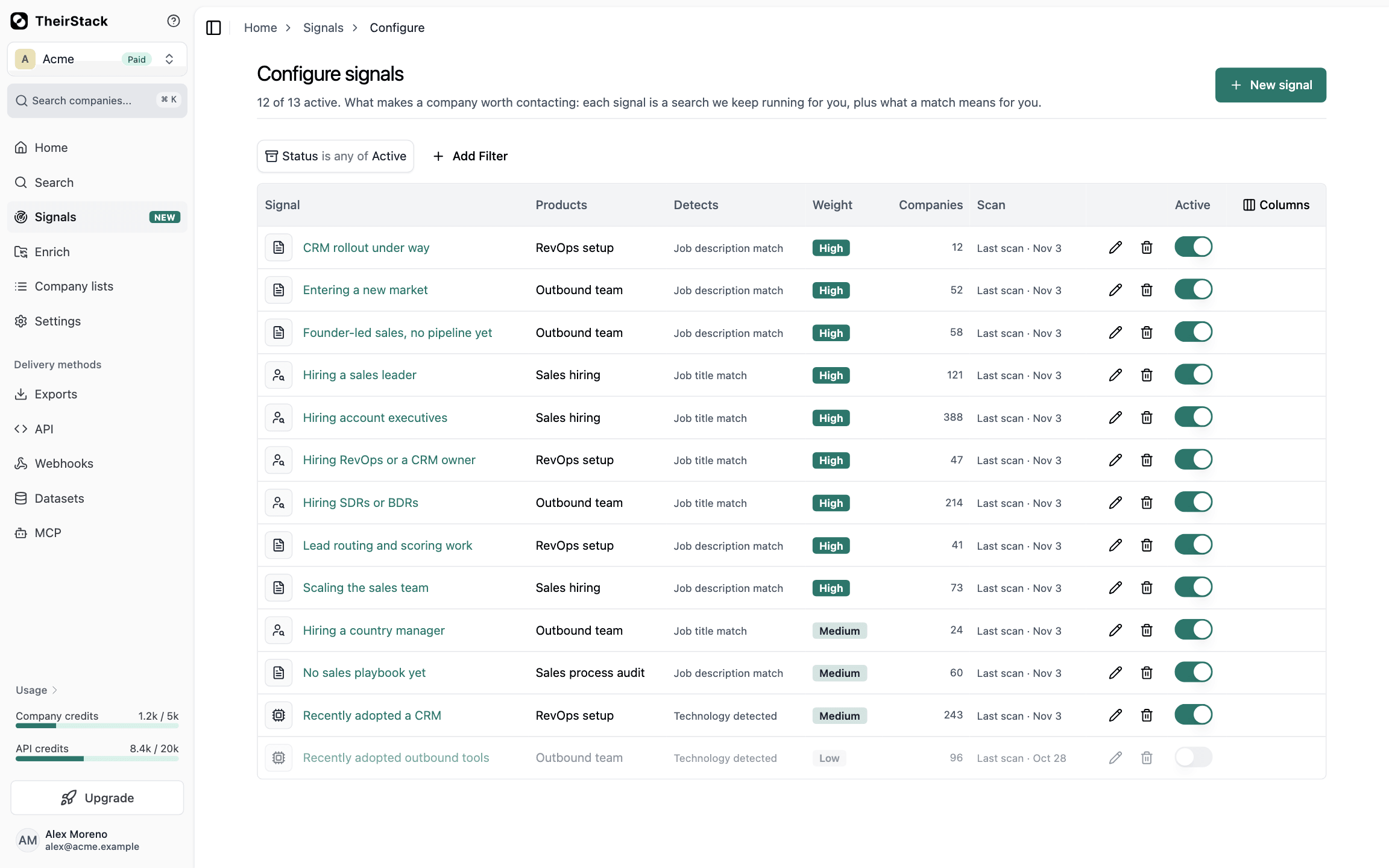
Create a signal with your AI assistant or from a job or company search, choose its meaning, products and weight, turn it on or off, change its filters and delete it from the Configure signals page.
Configure signals is where you create and change the signals behind your accounts feed. Open it with the Configure signals button at the top of Signals. The screenshots use a sample workspace, Acme, with invented companies.
Create a signal
Click New signal. You can build it in two ways.
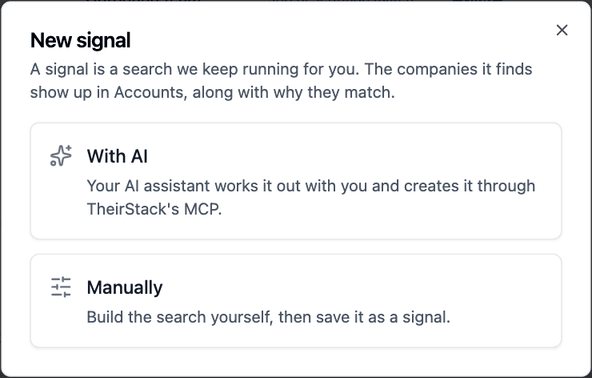
With AI
Your AI assistant works it out with you through TheirStack's MCP server. Connect the MCP server, then paste the prompt the dialog gives you. The assistant asks what you sell and which companies you want to hear about, tries searches until the companies look right, and creates the signal when you agree.
Manually
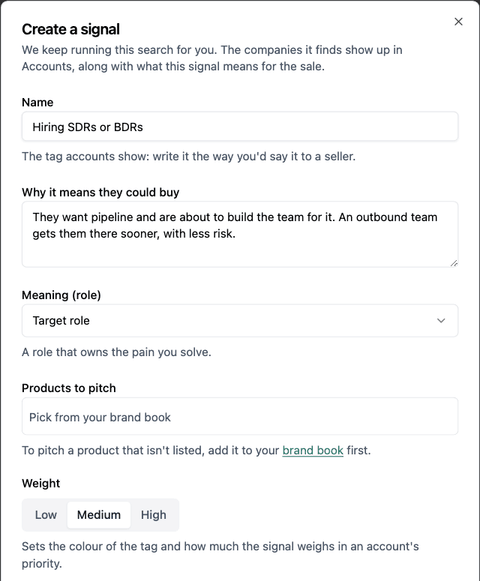
Pick Job search to find companies hiring for a role or naming a tool or a problem in their job ads, or Company search to find companies that use a technology or match a profile. Build the search, run it and, when the results look right, click Create signal. Then fill in:
| Field | What to write |
|---|---|
| Name | The tag accounts show. Write it the way you'd say it to a seller, such as "Hiring SDRs". Two live signals can't share a name. |
| Why it means they could buy | Why a match matters for the sale. It shows on the account, next to the signal's name. |
| Meaning (role) | What kind of evidence this is. See the meanings below. |
| Products to pitch | The products of your Brand Book this signal can sell. You can filter the feed by them. |
| Weight | Low, Medium or High: the color of the tag and how much it counts towards priority. |
What a signal can detect
TheirStack works out what a signal detects from its filters. You can read it on the signal's page and in the Detects column. One signal can combine several, and each match reads as a sentence on the account.
| Detects | A company matches when | How it reads on the account |
|---|---|---|
| Job title match | The title of a job ad matches your title filter | Acme is hiring a Head of Sales |
| Job description match | The text of a job ad matches your description filter | Acme's Account Executive ad says "build a pipeline from scratch" |
| Technology named in a job ad | A job ad names the technology you filter by | Acme's Data Engineer ad says "experience with Snowflake" |
| Job ad count | The company has at least the number of matching ads you set | Acme is hiring for 5 roles |
| Technology detected | The company uses the technology you filter by | Acme uses HubSpot |
What each meaning says
The meaning you give a signal is a label that helps you read the evidence. It doesn't change the account's priority.
| Meaning | What it says about the company |
|---|---|
| Target role | A role that owns the pain you solve |
| Decision-maker | A leader who will choose the tools |
| Pain | Work your product removes |
| Initiative | A project your product supports |
| Compliance | A rule or audit they must meet |
| Vertical | The industry they serve |
| Competitor | A tool you replace |
| Integration | A tool you connect to |
| Prerequisite | A tool that creates the need for yours |
| Customer | Already your customer |
Manage your signals
The table lists your signals. You can filter it by Product to pitch, Weight or Status, which shows your live signals under Active, on or off, and the ones you deleted under Archived. Pick what it shows in Columns: description, products, meaning, what it detects, weight, companies and last scan.
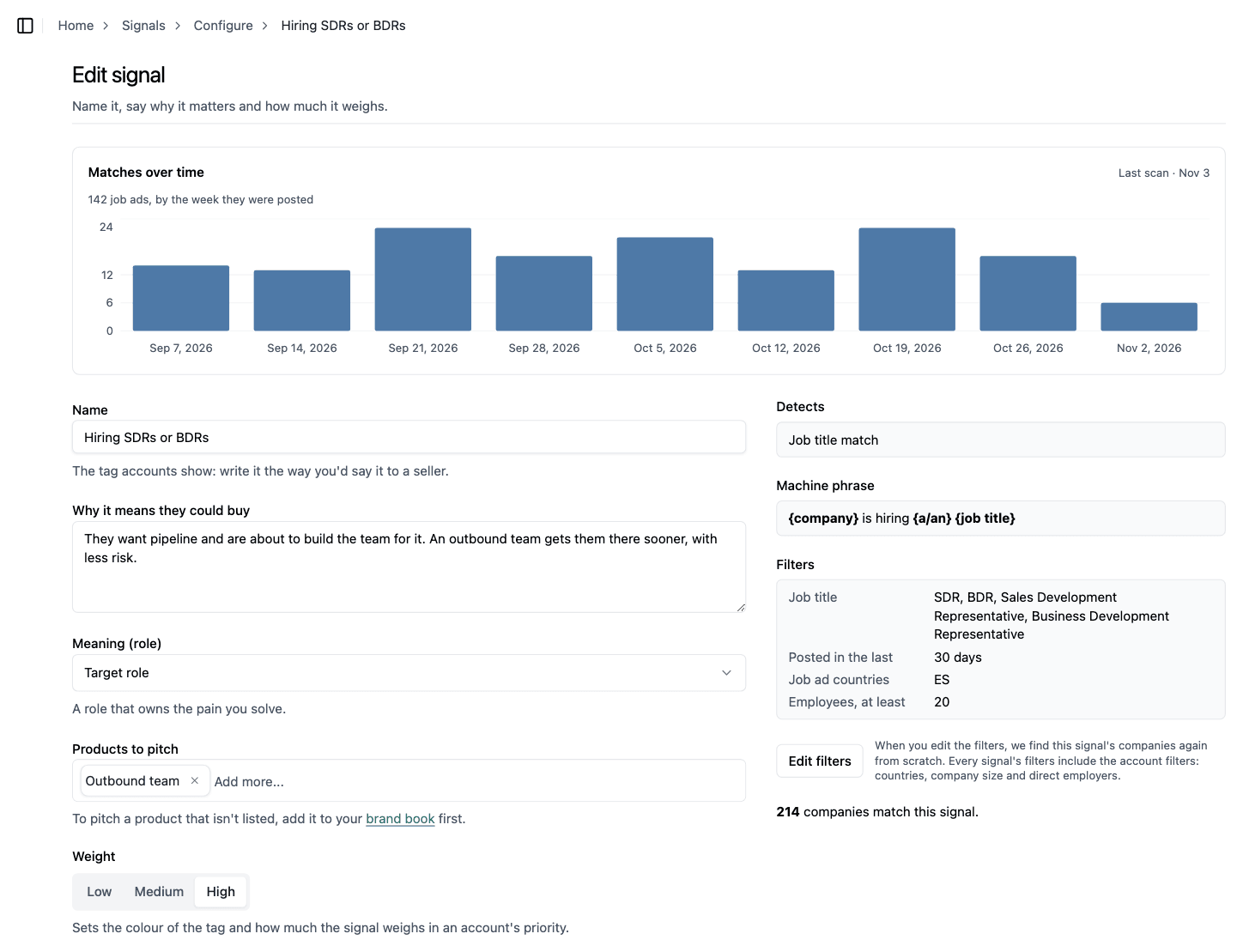
Click a signal to edit it. Its page also charts Matches over time, by the week each job ad was posted, and shows its filters.
| To | Do this | What happens |
|---|---|---|
| Stop looking for new companies | Turn off the Active switch | Scans stop. The companies it found stay in the feed, with its tag. |
| Start looking again | Turn on the Active switch | TheirStack scans what is new since the last scan. |
| Change the name, why, meaning, products or weight | Edit the signal and click Save changes | Nothing is searched again. |
| Change what it looks for | Click Edit filters, change the search, click Apply to signal and then Apply and search again | The new filters replace the old ones, along with every company the signal found. TheirStack searches again from scratch. |
| Hide its accounts | Click Delete signal | The signal is archived: its tag leaves the cards, and the companies only it found leave the feed. It stays listed under Archived, and its name is free to use again. You can undo it from the message that appears right after. |
Show your CRM's accounts in one signal
With HubSpot connected, each signal hides the accounts with a status you hide from the feed. To see them in one signal, edit it and turn off Hide HubSpot accounts from this signal. Which statuses are hidden is set in the HubSpot settings.
How is this guide?
Last updated on
Signals
Signals finds the companies likely to need what you sell. Each signal is a search TheirStack keeps running, and the companies it finds land in one feed, ranked by priority, with the job ads or technologies behind each match.
Brand Book
The Brand Book says what your company sells and to whom. It holds your products, the problems they solve, your ideal customers, your customers and your competitors, and Signals and AI agents start from it.