
Monitor tech stack changes on a target account list
Get real-time alerts when companies on your target account list start hiring for a specific technology — combine TheirStack's technographic data with a target account list and a webhook to catch tech stack adoption signals on the accounts that matter to you.
The problem
If you sell into a specific technology ecosystem — an integration for Salesforce, a competitor to Snowflake, a service on top of Kubernetes — the most valuable signal is a target account that just started using (or hiring for) that technology. It means a new champion, a new project, and a fresh window to start a conversation.
TheirStack tracks the technologies mentioned in job posts across millions of companies. A new technology appearing in an account's job post is one of the earliest public signals that a tech stack is changing.
Out of the box, a technographic search returns matches across our full universe of companies. For ABM and partner-led motions you want the opposite: only fire when one of your target accounts starts hiring for the technology you care about.
This guide shows how to scope tech stack monitoring to a specific list of companies and get a webhook in real time.
How it works
TheirStack webhooks are attached to a saved search. The search's filters determine which records trigger the webhook. To scope to a target account list you combine two filters in the same company search:
- A technology filter — the technology (or technologies) you want to detect.
- A company domain or LinkedIn URL filter — the explicit list of accounts.
When you attach a webhook to that saved search, you only get company.new events for companies that match both conditions.
Step-by-step
Open a new company search.
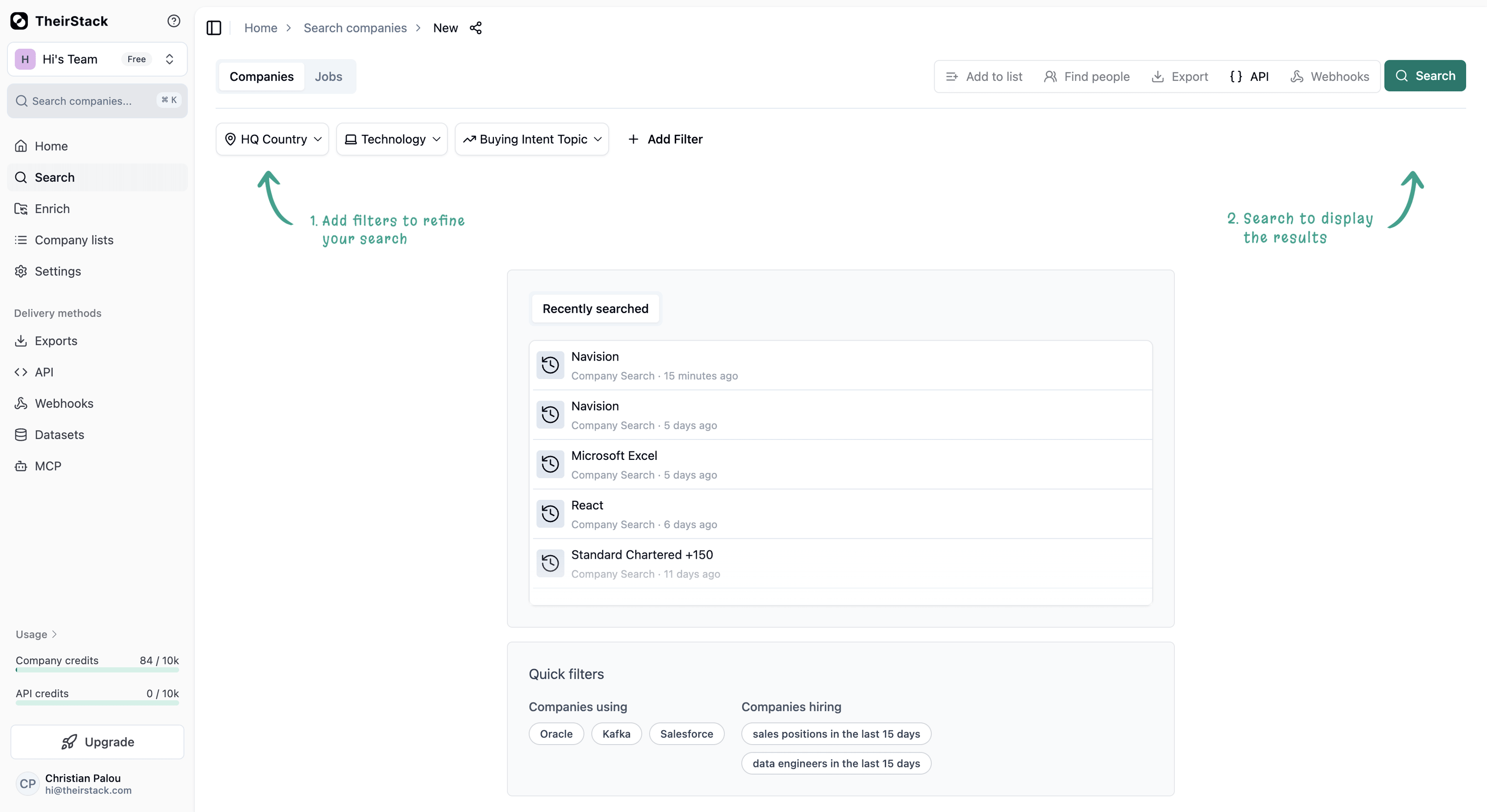
Go to app.theirstack.com and start a new company search. Remove any default filters by clicking the X next to each one.
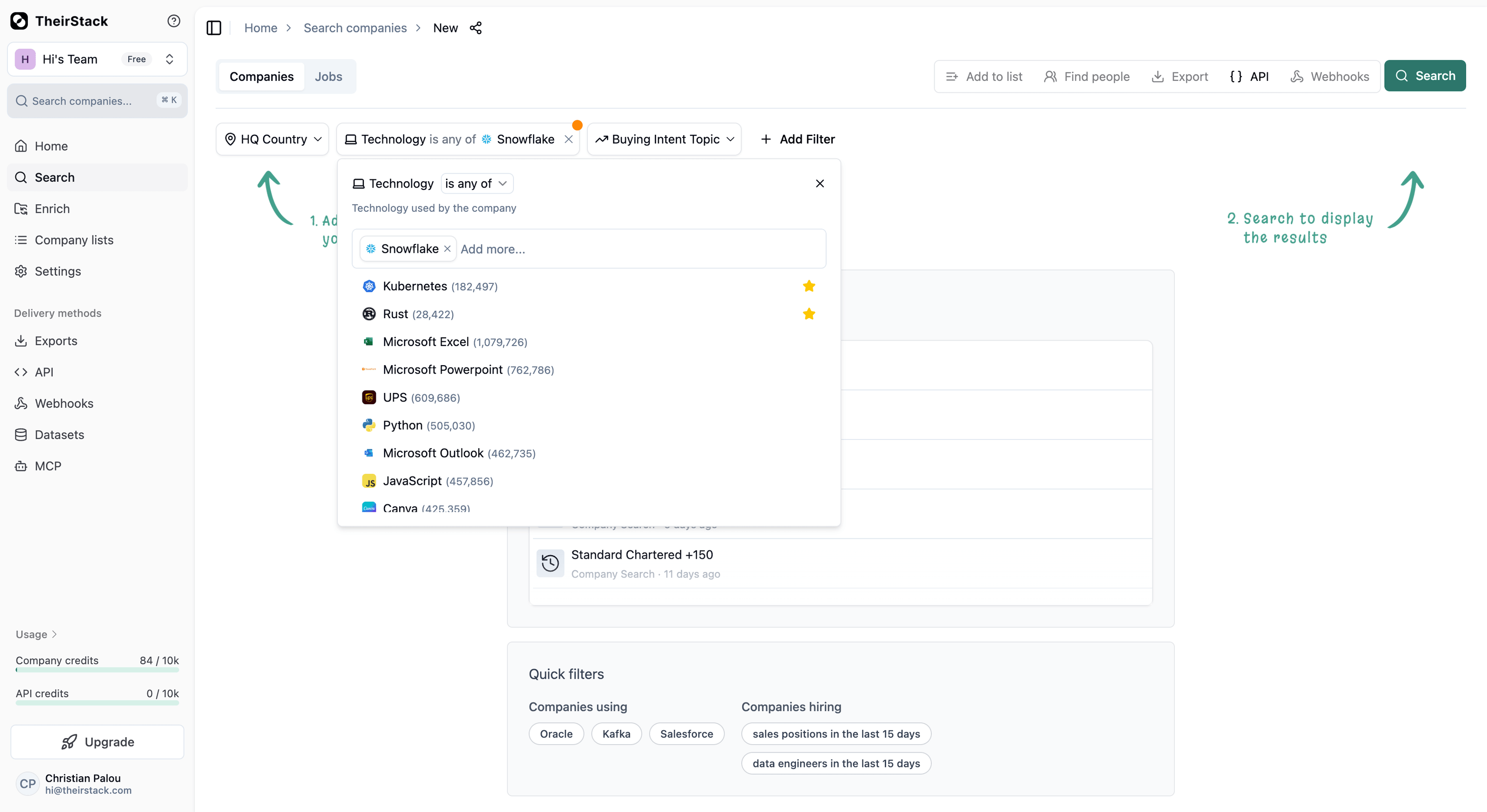
Add the technology filter.
Add a Technology filter and pick the specific technology you want to monitor — for example a single competitor product, a platform your integration plugs into, or a stack component your service depends on. Pick the technology at the most granular level your sales motion needs, not a broad category that groups many products.
This matters because company webhooks fire once per account: if you filter by a whole technology category, an account that already uses any product in that category will never re-trigger when a different product in the same category appears later. The recommended pattern is one saved search + one webhook per specific technology you care about. See the Tips and caveats section below.
If you're not sure whether a specific technology is tracked, check how to check if a technology is available. See also adding a technology filter to a search for the available filter modes (job description vs job title vs ATS URL).
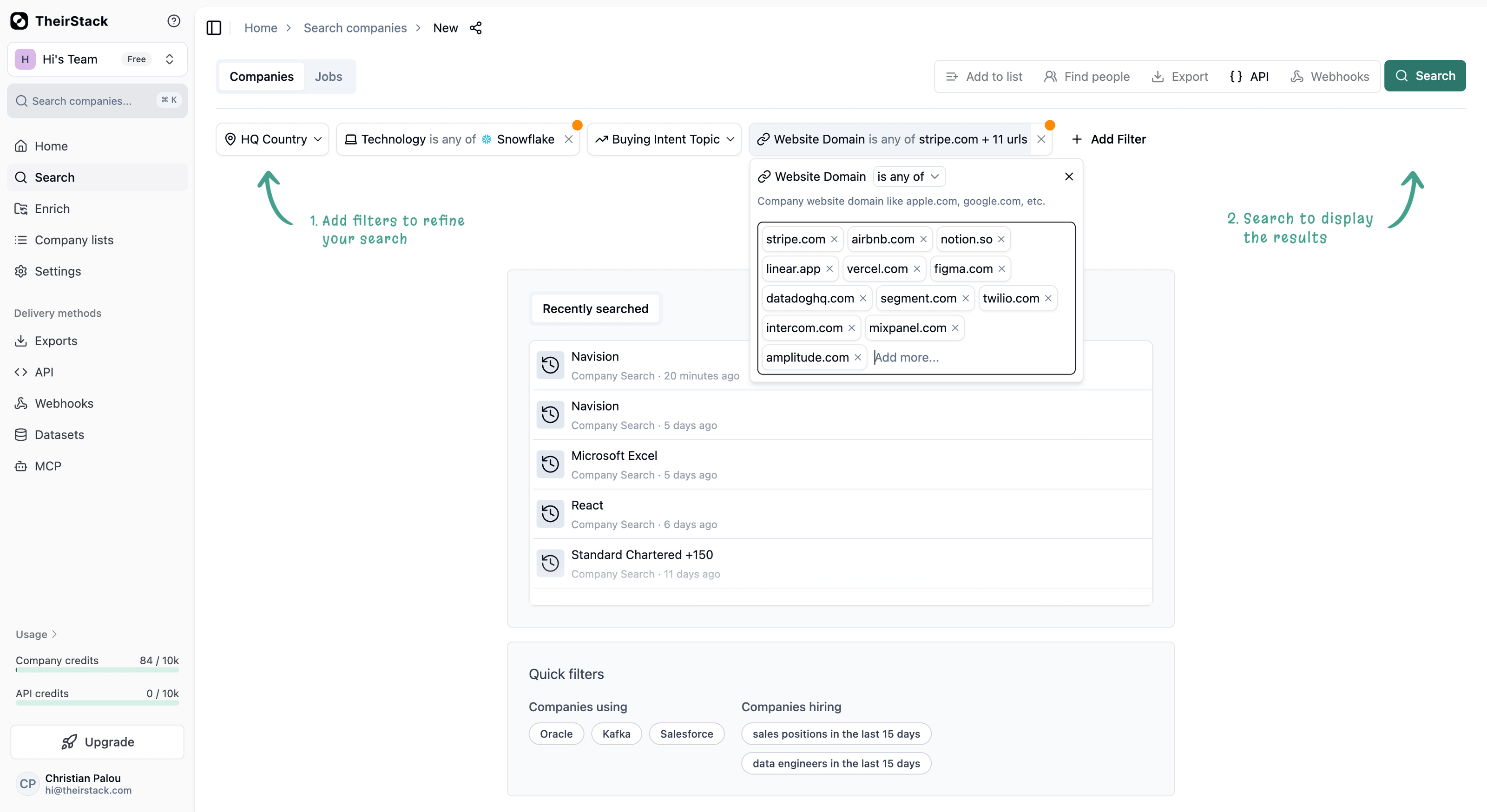
Add your target account list.
Add a Company domain filter and paste the domains of your target accounts (one per line). For best coverage, also add a Company LinkedIn URL filter and paste the LinkedIn company URLs — domain matches and LinkedIn matches are complementary and together maximize hit rate.
If your list lives in a CRM (HubSpot, Salesforce, Pipedrive), export the domains/LinkedIn URLs first and paste them here.
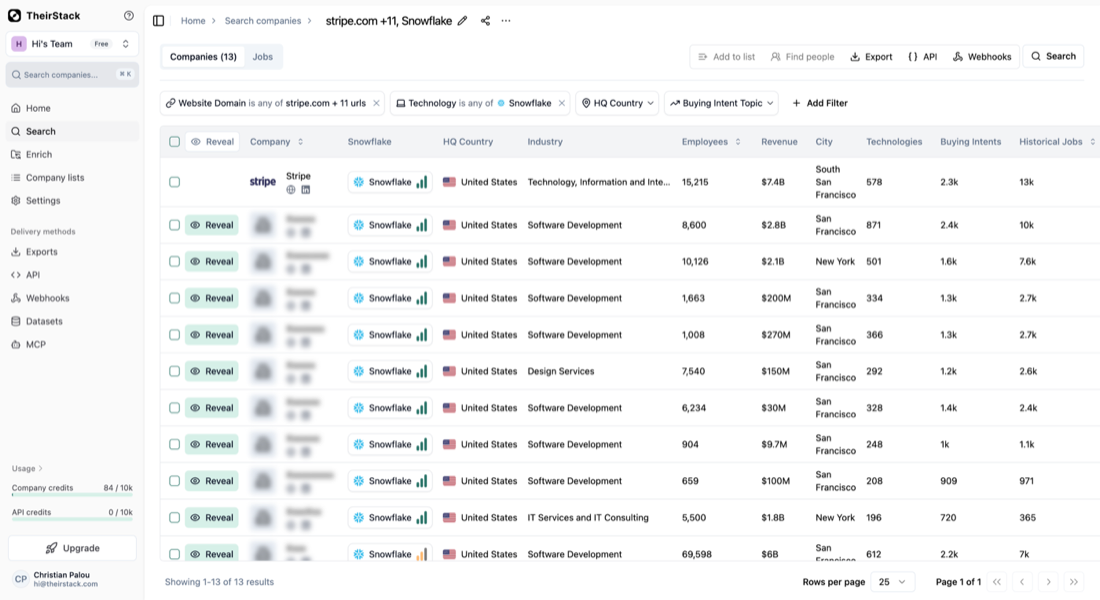
Save the search.
Click Save in the top right corner and give the search a clear name, e.g. ABM — Target accounts × Kubernetes adoption. The search has to be saved before you can attach a webhook.
Create the webhook.
Click the Webhooks button on the saved search and then Create Webhook. In the form:
- Choose where to start:
From now on— only fire for new tech adoption signals after webhook creation. Recommended for steady-state monitoring.All time— also backfill the accounts that already use the technology today. Useful for the first run so sales can immediately work the existing matches.
- Webhook URL: your endpoint (Zapier, Make, n8n, HubSpot workflow, custom service, etc.).
- Signing Secret (recommended): set a secret so you can verify the payload authenticity.
Use Send test event to confirm your endpoint is reachable.
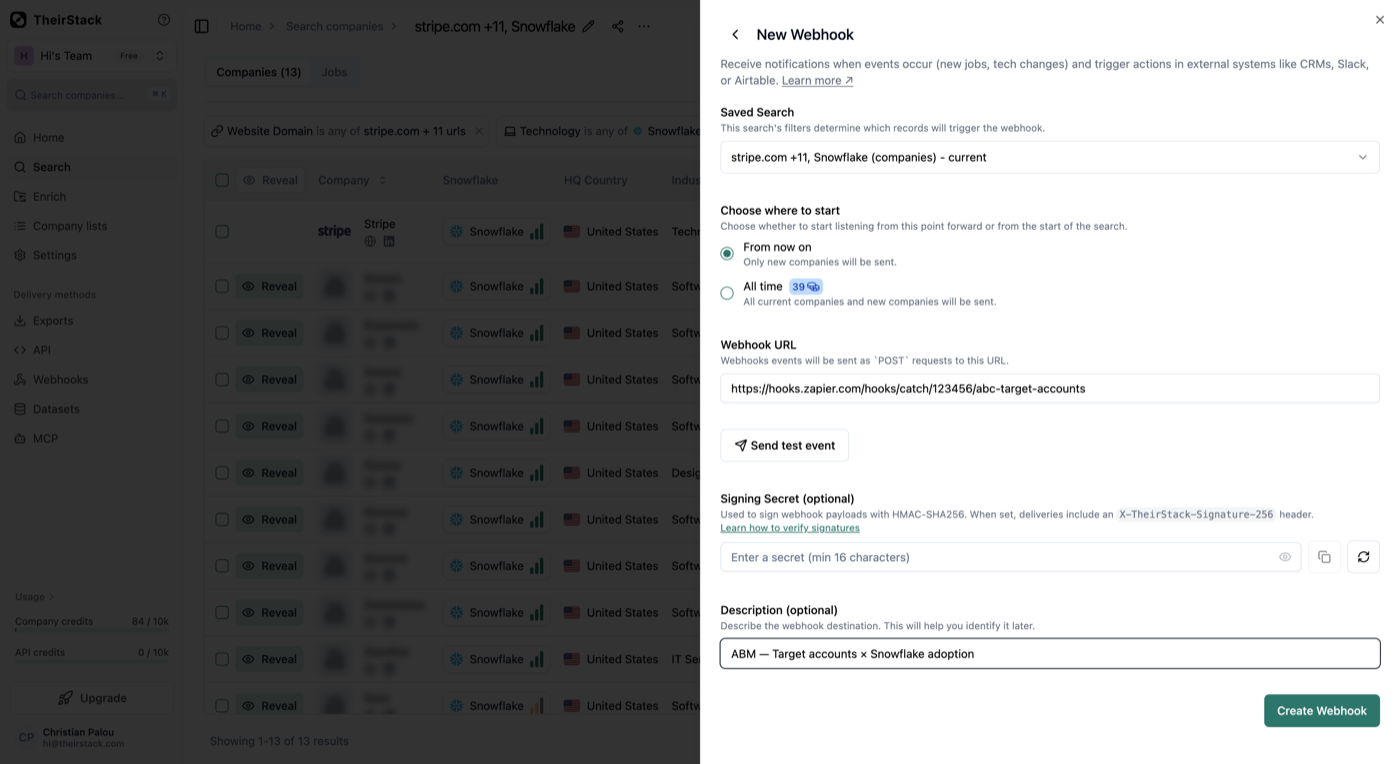
See how to set up a webhook for the full walkthrough.
Keep the target list up to date.
The list of accounts lives in the saved search, not in the webhook. To add/remove accounts, edit the company domain / LinkedIn URL filter on the saved search — the webhook will pick up the new scope automatically.
If you rotate target accounts frequently, you can manage searches and webhooks programmatically through the Webhooks API.
Routing the signal into your stack
The webhook payload contains the company that triggered the match. Common downstream actions:
- CRM: tag the account with the detected technology and create a task on the account owner.
- Slack: post to the AE's channel with the company name, the technology detected, and a link to the job post that triggered it.
- Sequencing tool (Outreach, Apollo, Salesloft): enroll the account owner in a technology-specific sequence ("we noticed you're hiring for X — here's how we help teams running X").
- Partner motions: if you're a partner in a tech ecosystem, route signals to the partner BD owner for co-sell.
Tips and caveats
- One saved search per specific technology you want to hear about — not per category. This is the most important caveat. Because company webhooks fire once per account (the event is
company.new), as soon as an account matches the search you won't get another event from it on that same search. So if you filter by a whole technology category (e.g. "Data warehouses", which groups dozens of products), an account that already uses any product in that category will silence the search forever — even when it later starts hiring for a new product in the same category. To get a fresh alert every time a new technology lights up on an account, create one saved search + one webhook per specific technology you actually care about (e.g. one for Snowflake, one for Databricks, one for BigQuery), not a single search filtered at the category level. - One webhook per technology also helps with routing. Mixing many technologies in one webhook makes downstream routing harder anyway — the per-technology split keeps payloads simple to fan out.
- Company webhooks fire once per account. Because the underlying event is
company.new, each target account triggers a single event the first time it matches the search — there's no risk of the same account firing repeatedly as it posts more jobs mentioning the technology. (The "Trigger once per company" toggle only exists on job webhooks, where the natural event is per-job.) - Filter mode matters. A mention in the job title or ATS URL is a stronger signal than a passing mention in a long job description. See adding a technology filter to a search for how to tune this.
- List size. The domain / LinkedIn URL filters comfortably handle lists of a few thousand entries. If your target list is larger, contact us — for very large lists it can be more efficient to pull technographic data periodically via the API instead of streaming via webhook.
- Domain + LinkedIn URL together. Some companies match on domain, others only on LinkedIn URL (domain changes, multi-brand groups, regional sites). Adding both filters typically lifts coverage materially over either alone.
Related guides
- How to monitor buying intent signals on a list of target accounts — same pattern, applied to buying intent topics instead of specific technologies.
- How to set up a webhook
- Adding a technology filter to a search
- How to check if a technology is available
- How to enrich companies with technographic data
- How to target companies by technology
How is this guide?
Last updated on
How to monitor job postings automatically
Learn how to automatically monitor job postings and get real-time alerts when companies post new jobs. Set up automated job tracking with webhooks to Slack, CRM, or any system.
Outreach companies actively hiring
Learn how to set up automated outreach to companies actively hiring using TheirStack webhooks and integrations — send personalized messages as soon as new job postings match your criteria.