
Monitor buying intent on a target account list
Get real-time alerts when companies on your target account list show buying intent for a specific topic — combine TheirStack's buying intent dataset with a target account list and a webhook to power ABM workflows.
The problem
If you run an ABM (account-based marketing) motion, you typically work from a curated list of target accounts — a few hundred to a few thousand companies your sales team has agreed to focus on. The question that matters every week is: which of these accounts is showing fresh intent to buy something we sell?
TheirStack's buying intent dataset surfaces companies that mention a given topic (a product category, a competitor, a problem space) in their job posts — a strong signal that the company is hiring against that problem and likely evaluating solutions.
Out of the box, a buying intent search returns matches across TheirStack's full universe of companies. For ABM you want the opposite: only fire when one of your target accounts shows intent, ignoring everything else.
This guide shows how to scope buying intent monitoring to a specific list of companies and get a webhook in real time when a new signal appears.
How it works
TheirStack webhooks are attached to a saved search. The search's filters determine which records trigger the webhook. To scope to a target account list you combine two filters in the same company search:
- A buying intent filter — the topic(s) your sales team cares about.
- A company domain or LinkedIn URL filter — the explicit list of accounts.
When you attach a webhook to that saved search, you only get company.new events for companies that match both conditions.
Step-by-step
Open a new company search.
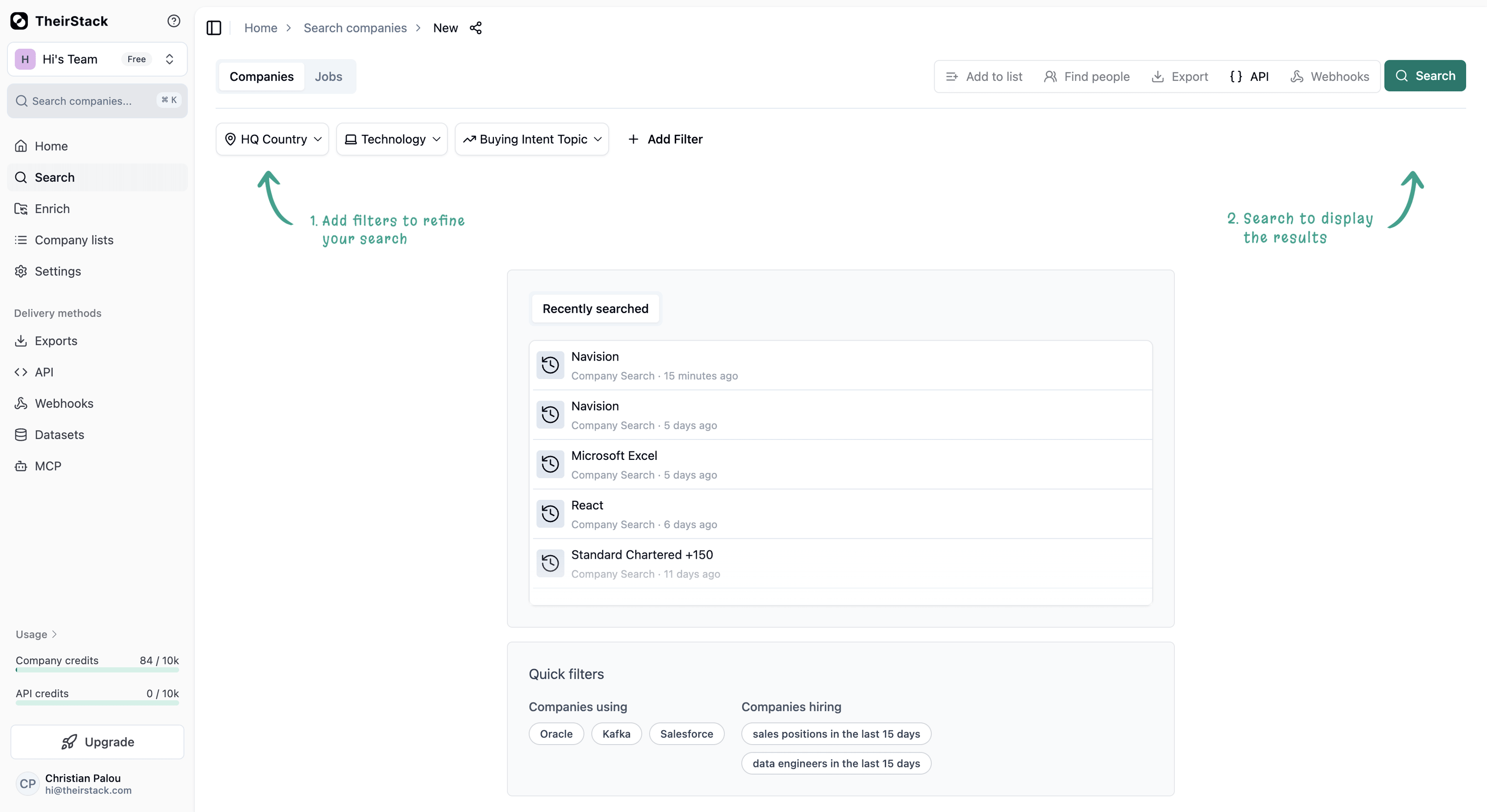
Go to app.theirstack.com and start a new company search. Remove any default filters by clicking the X next to each one.
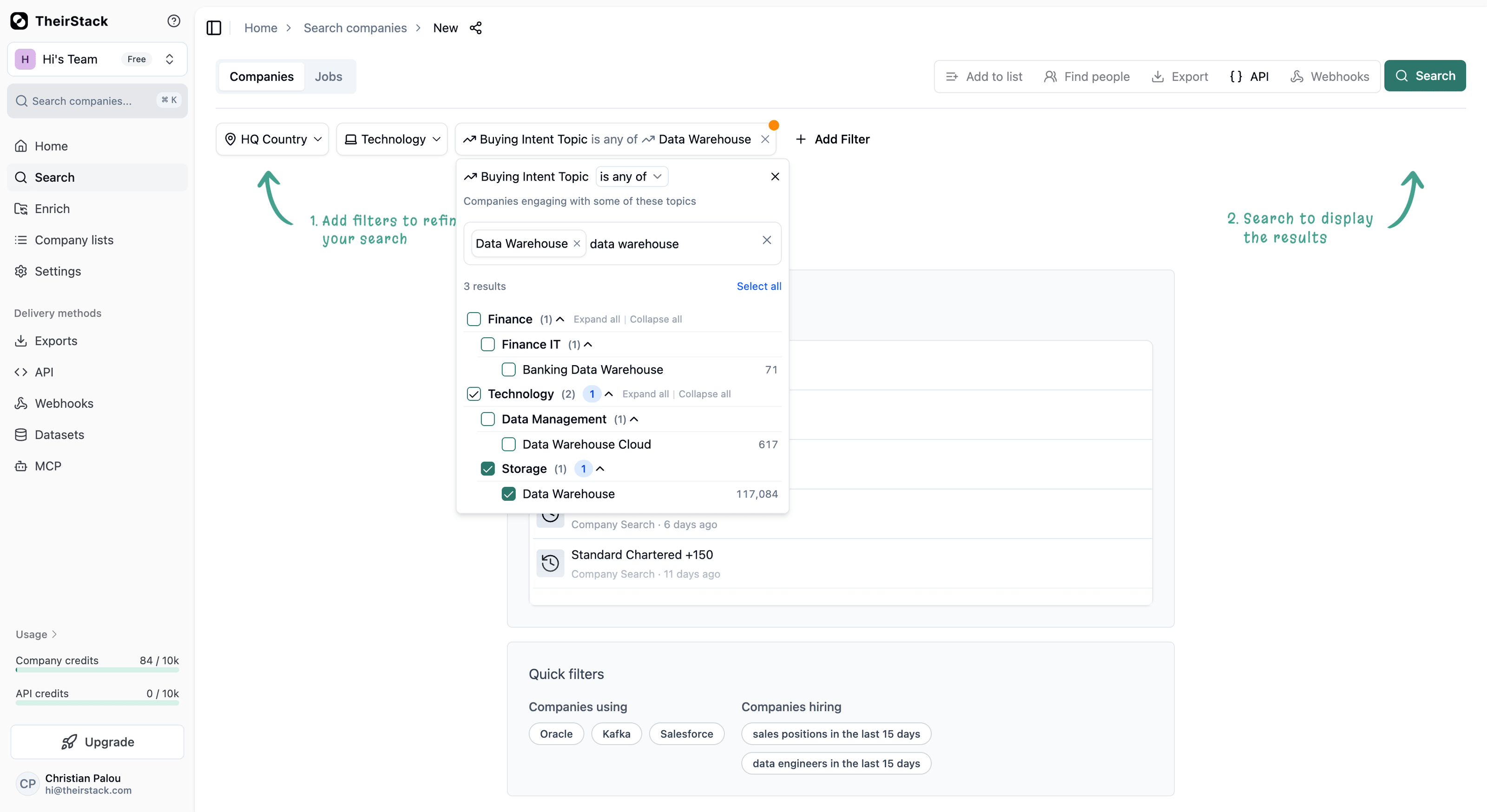
Add the buying intent filter.
Add a Buying intent filter and pick the specific topic you want to monitor (e.g. a single competitor name, or a single concrete product category). Pick the topic at the most granular level your sales motion needs — not a broad category that groups many topics.
This matters because company webhooks fire once per account: if you filter by a whole category, an account that already shows intent for any topic in that category will never re-trigger when a different topic in the same category appears later. The recommended pattern is one saved search + one webhook per specific topic you care about. See the Tips and caveats section below.
See the buying intent dataset reference for the full list of available fields.
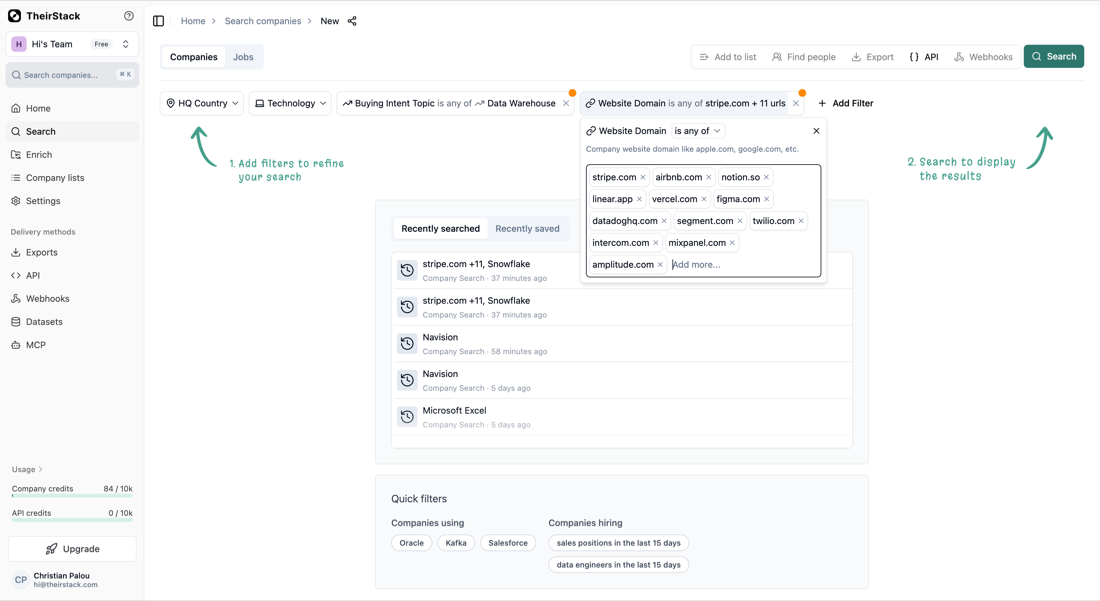
Add your target account list.
Add a Company domain filter and paste the domains of your target accounts (one per line). For best coverage, also add a Company LinkedIn URL filter and paste the LinkedIn company URLs — domain matches and LinkedIn matches are complementary and together maximize hit rate.
If your list lives in a CRM (HubSpot, Salesforce, Pipedrive), export the domains/LinkedIn URLs first and paste them here.
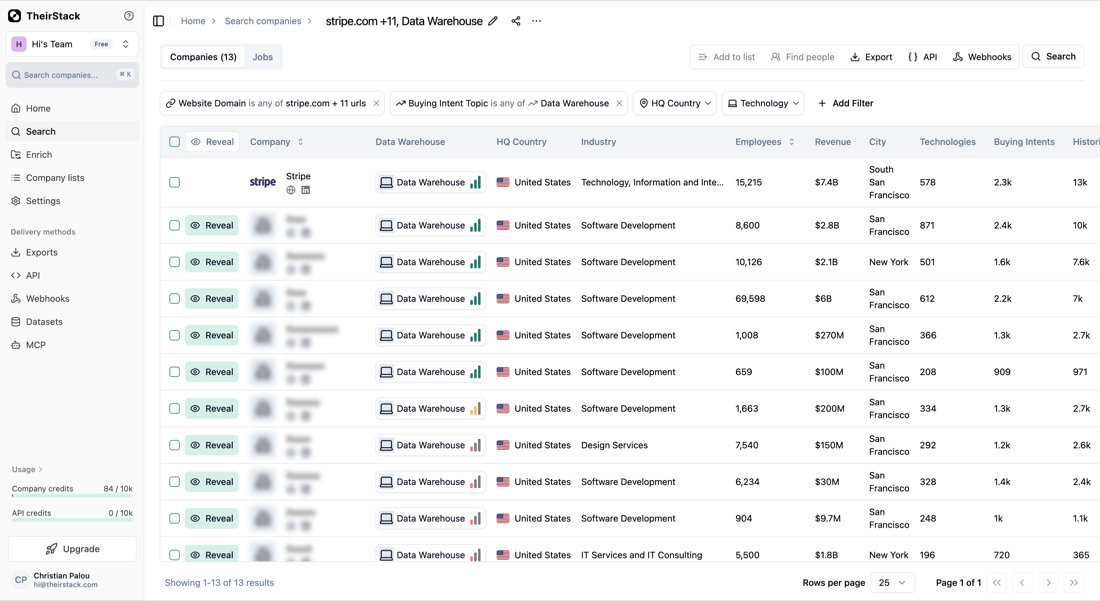
Save the search.
Click Save in the top right corner and give the search a clear name, e.g. ABM — Target accounts × Snowflake intent. The search has to be saved before you can attach a webhook.
Create the webhook.
Click the Webhooks button on the saved search and then Create Webhook. In the form:
- Choose where to start:
From now on— only fire for new intent signals after webhook creation. Recommended for steady-state monitoring.All time— also backfill historical matches. Useful for the first run so SDRs see which accounts are already showing intent today.
- Webhook URL: your endpoint (Zapier, Make, n8n, HubSpot workflow, custom service, etc.).
- Signing Secret (recommended): set a secret so you can verify the payload authenticity.
Use Send test event to confirm your endpoint is reachable.
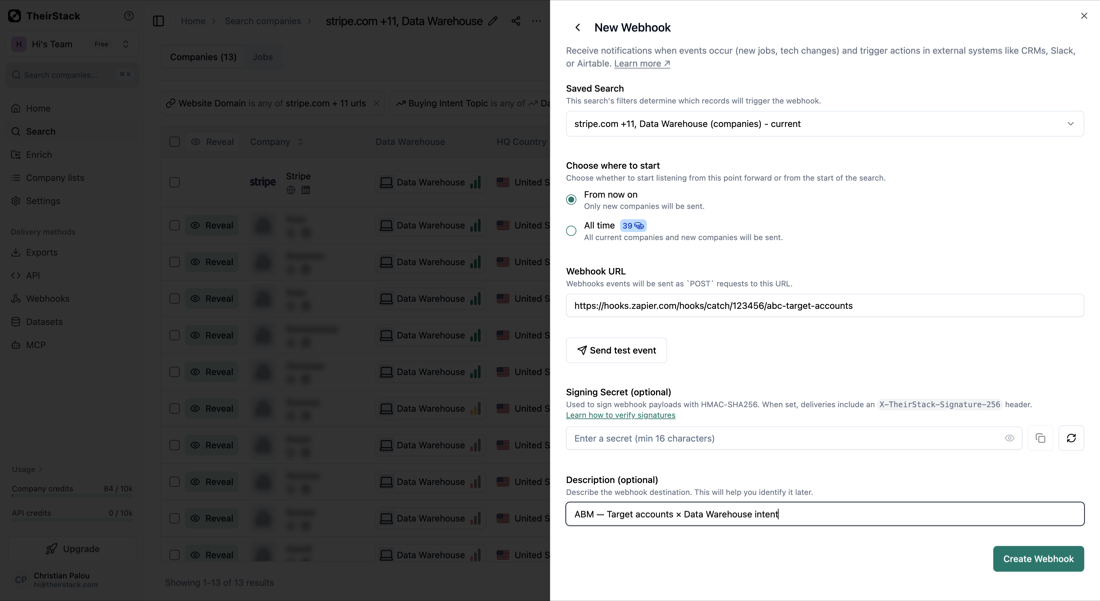
See how to set up a webhook for the full walkthrough.
Keep the target list up to date.
The list of accounts lives in the saved search, not in the webhook. To add/remove accounts, edit the company domain / LinkedIn URL filter on the saved search — the webhook will pick up the new scope automatically.
If you rotate target accounts frequently (e.g. quarterly with sales ops), you can do this programmatically through the Webhooks API and the saved searches API instead of the UI.
Routing the signal into your stack
The webhook payload contains the company that triggered the intent. Common downstream actions:
- CRM: create a task on the account owner, or update an
Intent topiccustom property on the company record. - Slack: post to the AE's channel with the company name, the topic, and a link to the job post that triggered the signal.
- Sequencing tool (Outreach, Apollo, Salesloft): enroll the account owner in a topic-specific sequence.
- Ads: push the company to a LinkedIn matched audience for a topic-specific campaign.
Zapier, Make and n8n all consume TheirStack webhooks directly, so most of these integrations don't require custom code.
Tips and caveats
- One saved search per specific signal you want to hear about — not per category. This is the most important caveat. Because company webhooks fire once per account (the event is
company.new), as soon as an account matches the search you won't get another event from it on that same search. So if you filter by a whole category (e.g. "Data infrastructure", which groups dozens of topics), an account that already shows intent for any topic in that category will silence the search forever — even when it later shows intent for a new topic in the same category. To get a fresh alert every time a new topic/technology lights up, create one saved search + one webhook per specific topic you actually care about (e.g. one for Snowflake, one for Databricks, one for BigQuery), not a single search filtered at the category level. - One webhook per topic also helps with routing. If you want to route different topics to different channels (e.g. competitor mentions to AEs, problem-space mentions to marketing), the per-topic split is cleaner than parsing the topic out of a single firehose anyway.
- Company webhooks fire once per account. Because the underlying event is
company.new, each target account triggers a single event the first time it matches the search — there's no risk of the same account firing repeatedly as it posts more jobs. (The "Trigger once per company" toggle only exists on job webhooks, where the natural event is per-job and you'd otherwise get one event per matching job posting.) - List size. The domain / LinkedIn URL filters comfortably handle lists of a few thousand entries. If your target list is larger, contact us — for very large lists it can be more efficient to invert the flow and pull intents periodically via the API.
- Domain + LinkedIn URL together. Some companies match on domain, others only on LinkedIn URL (e.g. domain changes, multi-brand groups, regional sites). Adding both filters typically lifts coverage materially over either alone.
- Backfill once, then switch to incremental. A common pattern is: create the webhook with
All timefor the first run to seed your CRM with existing matches, then either disable that webhook and create a new one set toFrom now on, or simply rely on the duplicate-prevention built into webhooks (no event will be re-sent).
Related guides
- How to set up a webhook
- Buying intent dataset reference
- Monitoring open jobs from current and past customers — same target-account pattern, applied to job postings instead of intent signals.
- How to monitor job postings automatically
How is this guide?
Last updated on
Identifying companies with problems your software solves
Learn how to use job postings to discover companies actively hiring for tasks your software automates. Find your ideal customers by analyzing [[total_jobs]] job descriptions for specific pain points and manual processes.
How to Monitor Competitor Hiring
Learn how to track competitor job postings to uncover their strategy, identify expansion plans, and spot market opportunities before anyone else.