
How to Search Job Postings Across 328,000+ Sources
Complete guide to searching millions of job postings from 328,000+ sources. Learn how to combine filters for sales prospecting, recruiting, and market research — with full walkthroughs for each use case.
The problem with job posting data today
Job postings are scattered across thousands of sources: LinkedIn, Indeed, Glassdoor, company career pages, niche industry boards, and dozens of ATS platforms like Greenhouse, Lever, and Workday. If you need a complete picture of who's hiring for what, you're stuck checking each source manually — and you'll still miss most of them.
TheirStack aggregates 256M job postings from 365k sources across 195 countries into a single searchable interface with 20+ filters.
Search job postings step by step
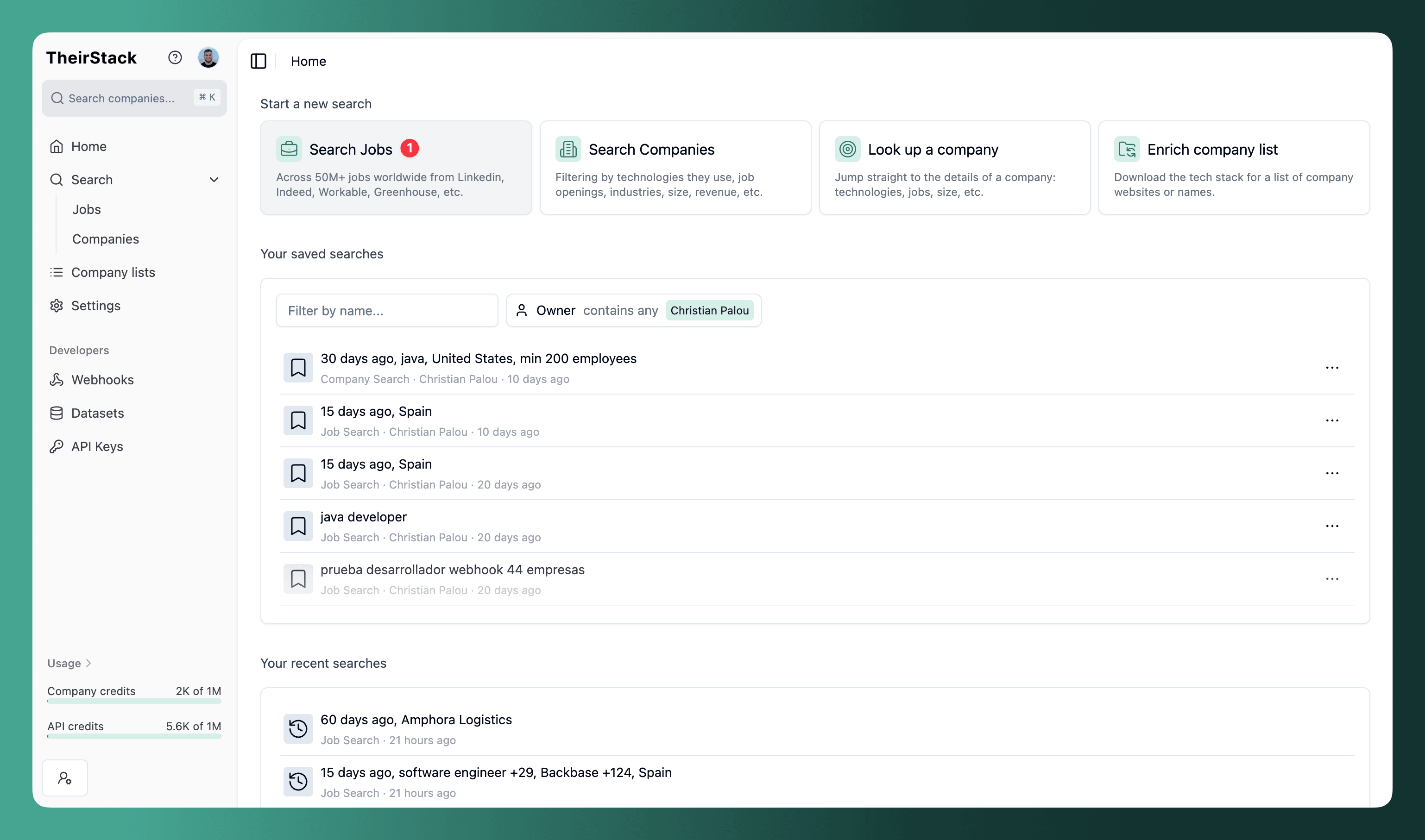
Start a new search
Go to Job Search. By default, it returns jobs posted in the last 15 days in your country.
Filter by what you're looking for
Click Add filter and type the filter you need. The most common starting points:
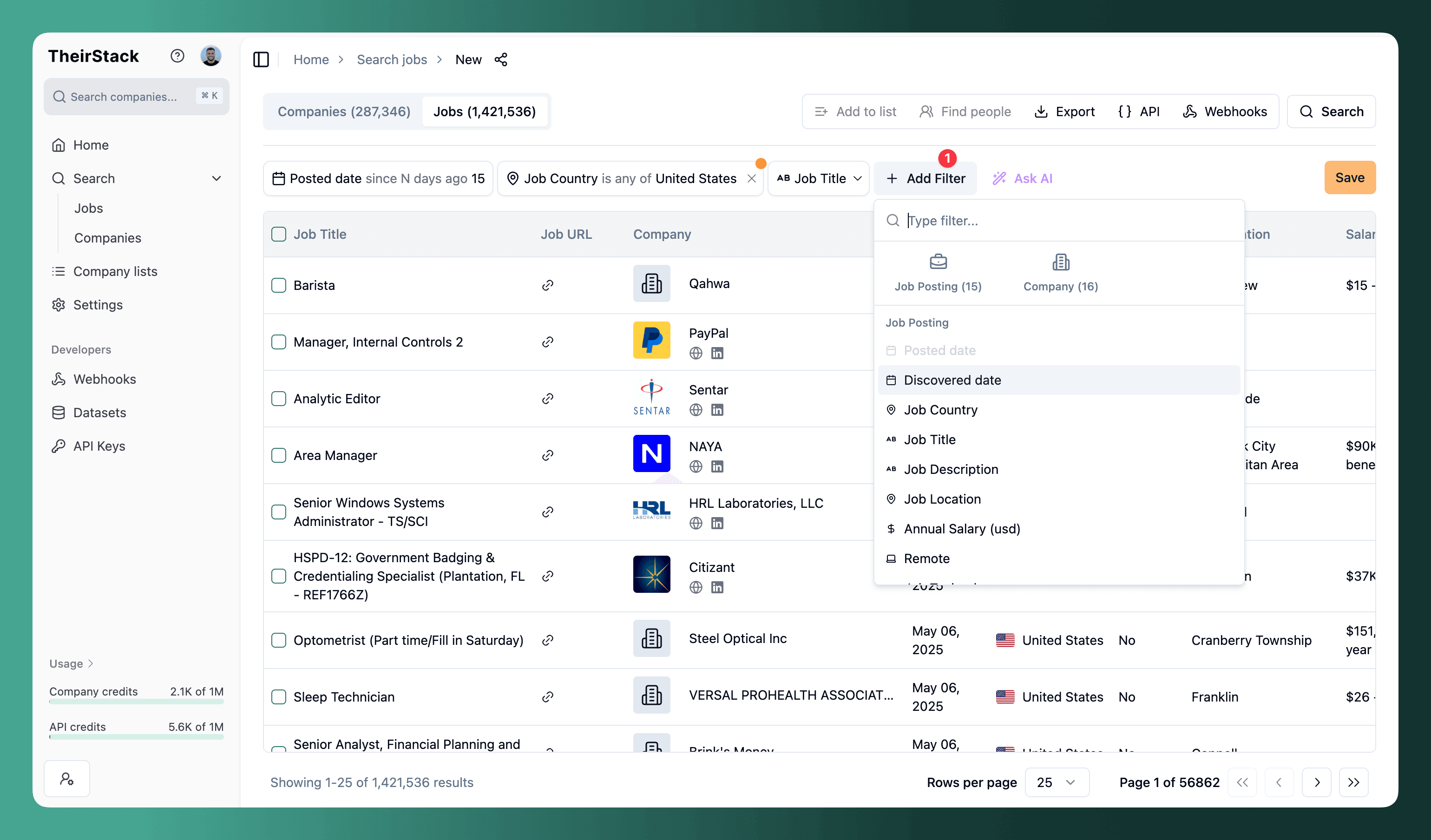
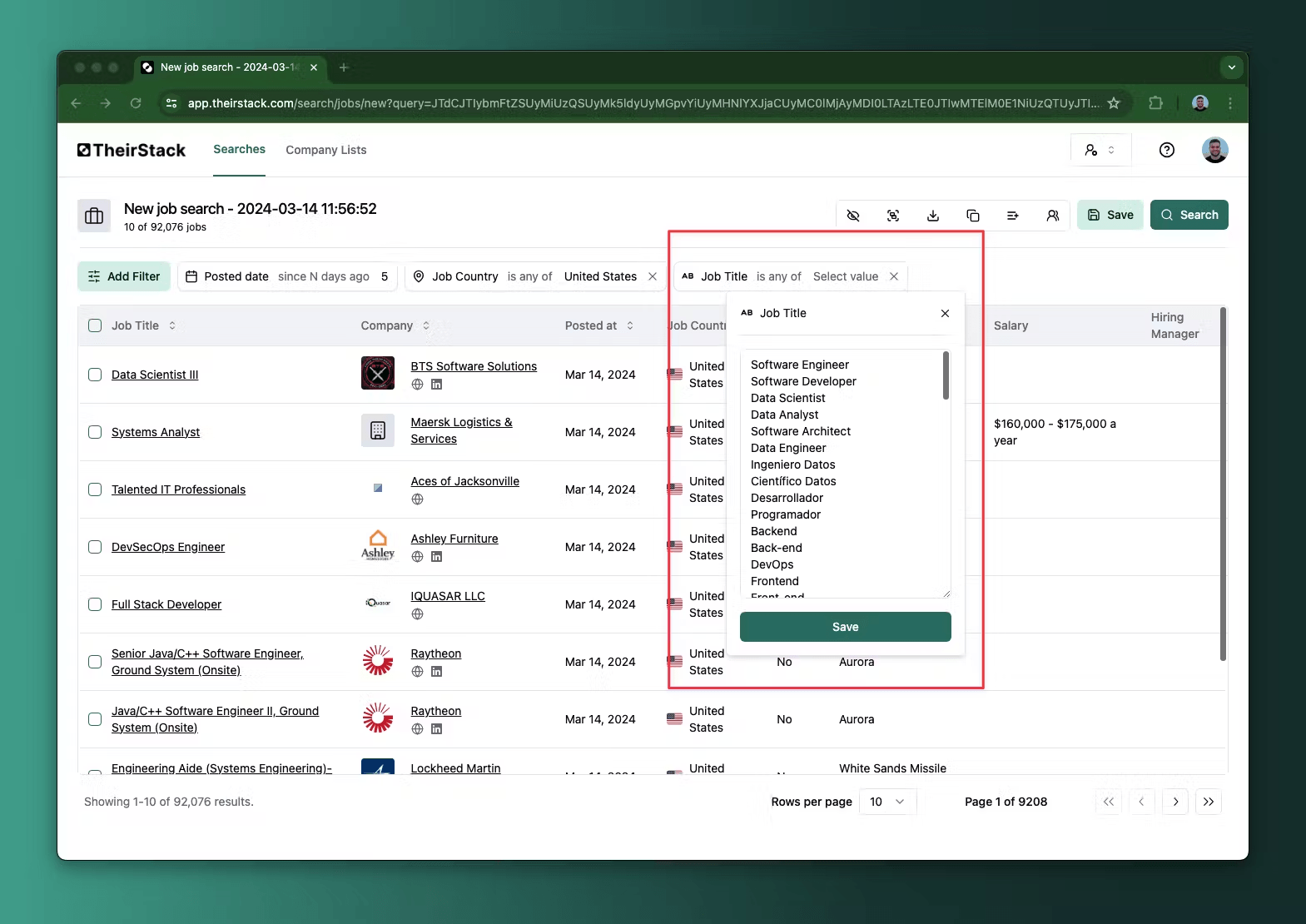
- Job title — Add role names one per line. "Contains any of" matches any job whose title includes any of the terms. Example: "Data Engineer", "Analytics Engineer", "Data Platform Engineer".
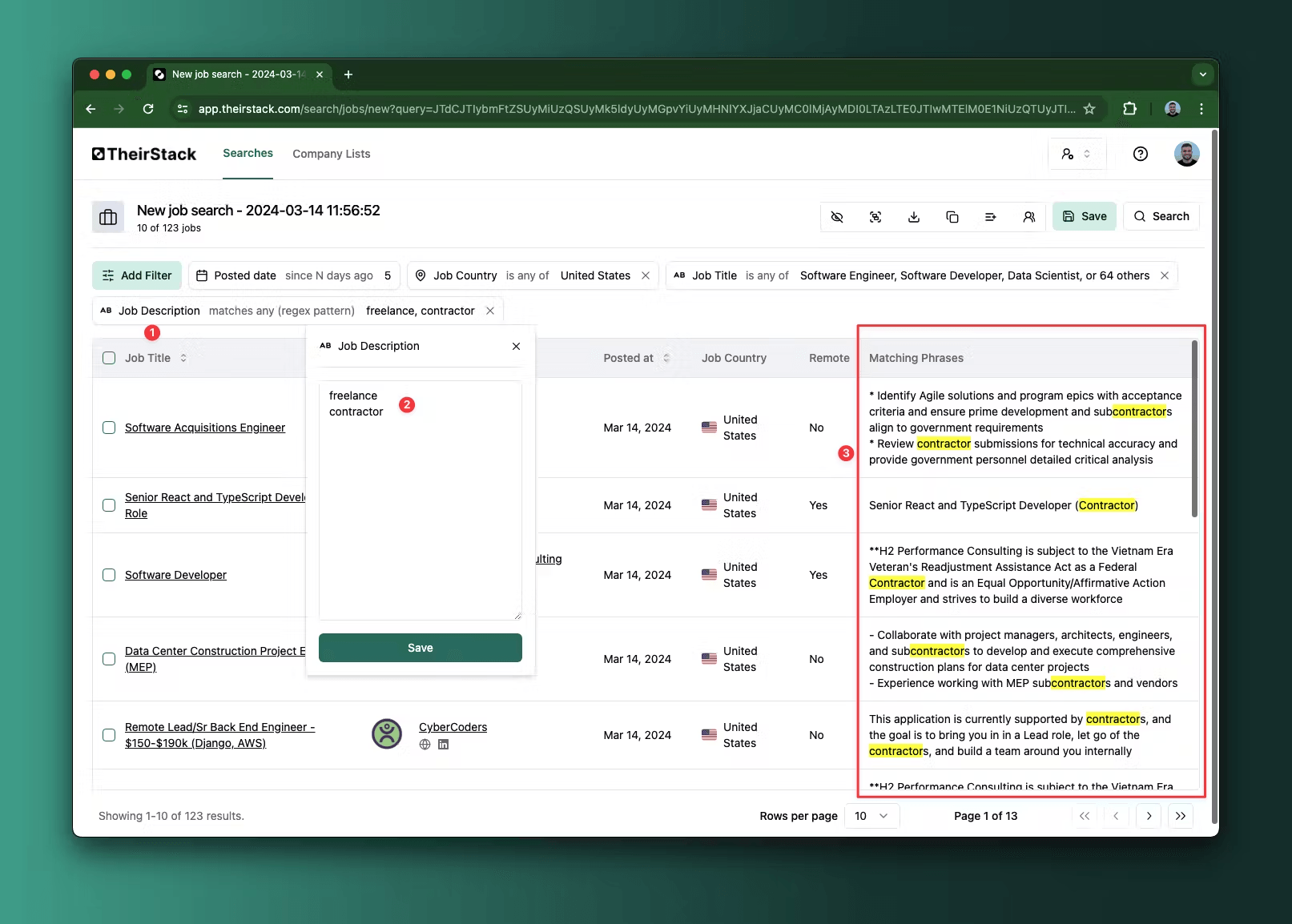
- Job description — Search the full posting text when titles are too generic. A "Software Engineer" posting might be for a Kubernetes platform team or a WordPress plugin. Supports keywords and regex. Example: filter for "SOC 2" or "HIPAA" to find companies with compliance needs.
-
Job technology — Technologies mentioned in the posting. Broader than title search: filtering by "Snowflake" returns any job that requires Snowflake experience, not just jobs with "Snowflake" in the title.
-
Buying intent topic — Higher-level topics like "Machine Learning", "Cloud Migration", or "Data Privacy". Useful when you sell a category rather than compete with a specific product.
-
Has hiring manager — Only show jobs where a hiring manager's LinkedIn profile has been identified — so you can reach out directly to the person who posted it.
You can also filter by salary range, remote status, seniority level (Junior through C-level), employment type (Full-time, Contract, Freelance...), job country, job source, and more. See the full list in the Job Search reference.
Understanding filter operators
Each filter has an operator that controls how it matches. The operator appears between the filter name and the values you enter:
- Contains any of — The field includes at least one of the values. Used for text fields like job title or description. "Job title contains any of: Engineer, Developer" matches "Senior Data Engineer" and "Backend Developer" — any title that contains either word.
- Does not contain any of — Excludes results where the field includes any of the values. "Job title does not contain any of: Intern, Junior" removes entry-level postings from your results.
- Is any of — The field exactly matches one of the selected values. Used for structured fields like technology, industry, or country. "Job technology is any of: Snowflake, BigQuery" matches jobs that list Snowflake or BigQuery as a required technology.
- Is not any of — Excludes exact matches. "Company industry is not any of: Staffing & Recruiting" removes staffing agencies from results.
You can add the same filter twice with different operators to include and exclude at the same time. For example: Job title contains any of "Engineer" + Job title does not contain any of "Intern, Junior" — this returns all engineer roles except entry-level ones.
Review your first results
Click Search. With only job filters active, you'll get a broad set of results — every posting that matches your titles and technologies, regardless of what company is behind it.
Reveal a few companies to unlock their full data — name, domain, LinkedIn URL — for 1 credit, 90-day access. Click the reveal icon next to any company name.
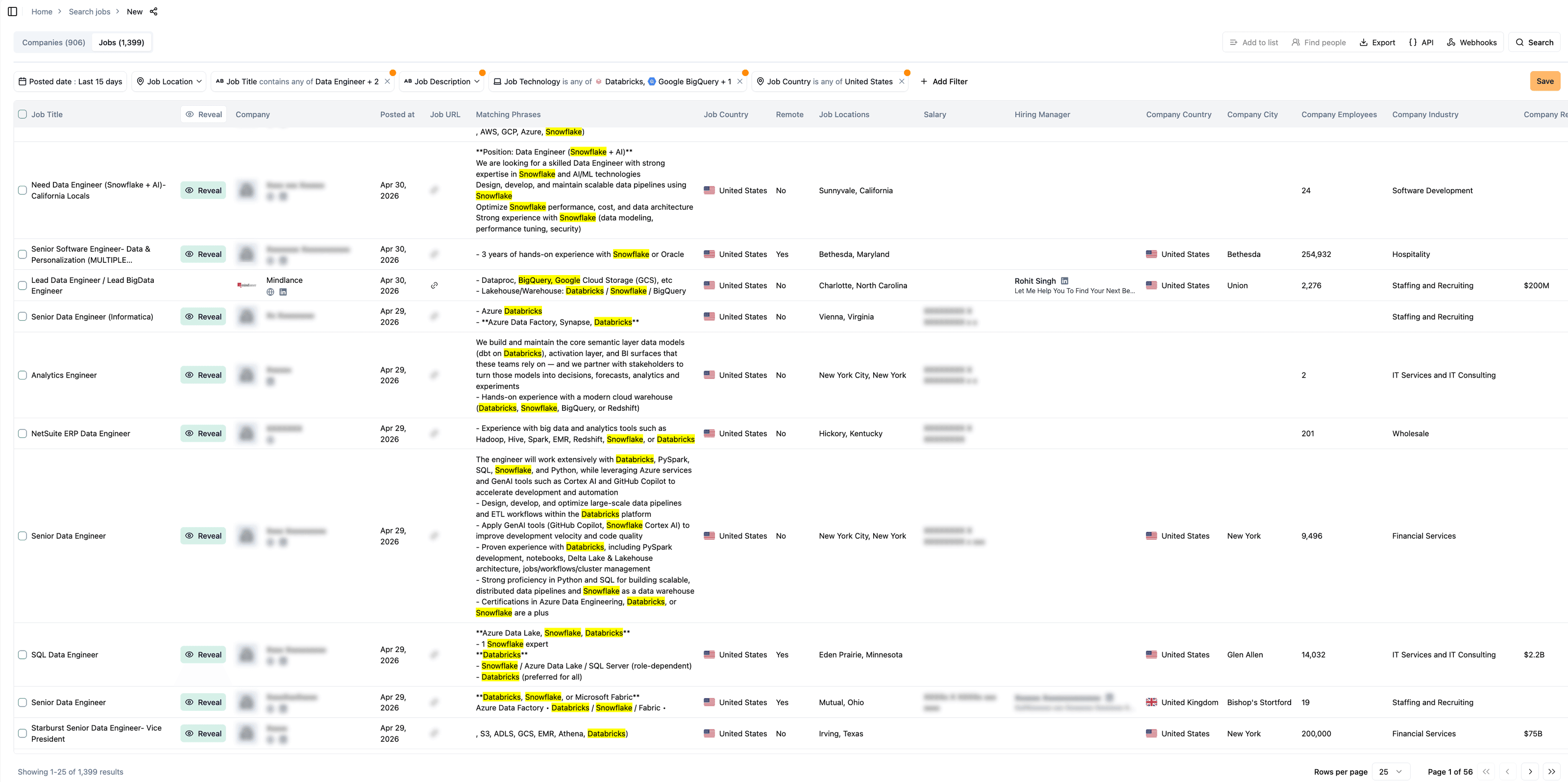
Now look at what you got. You'll likely see noise: recruiting agencies posting on behalf of other companies, companies with 5 employees or 50,000, industries you don't sell into. The job filters matched the posting correctly — but the companies behind those postings aren't all relevant to you.
This is expected. Job filters alone tell you what roles exist — company filters tell you who is hiring. Let's add those now.
Narrow by company attributes
Add company filters to remove the noise you just saw:
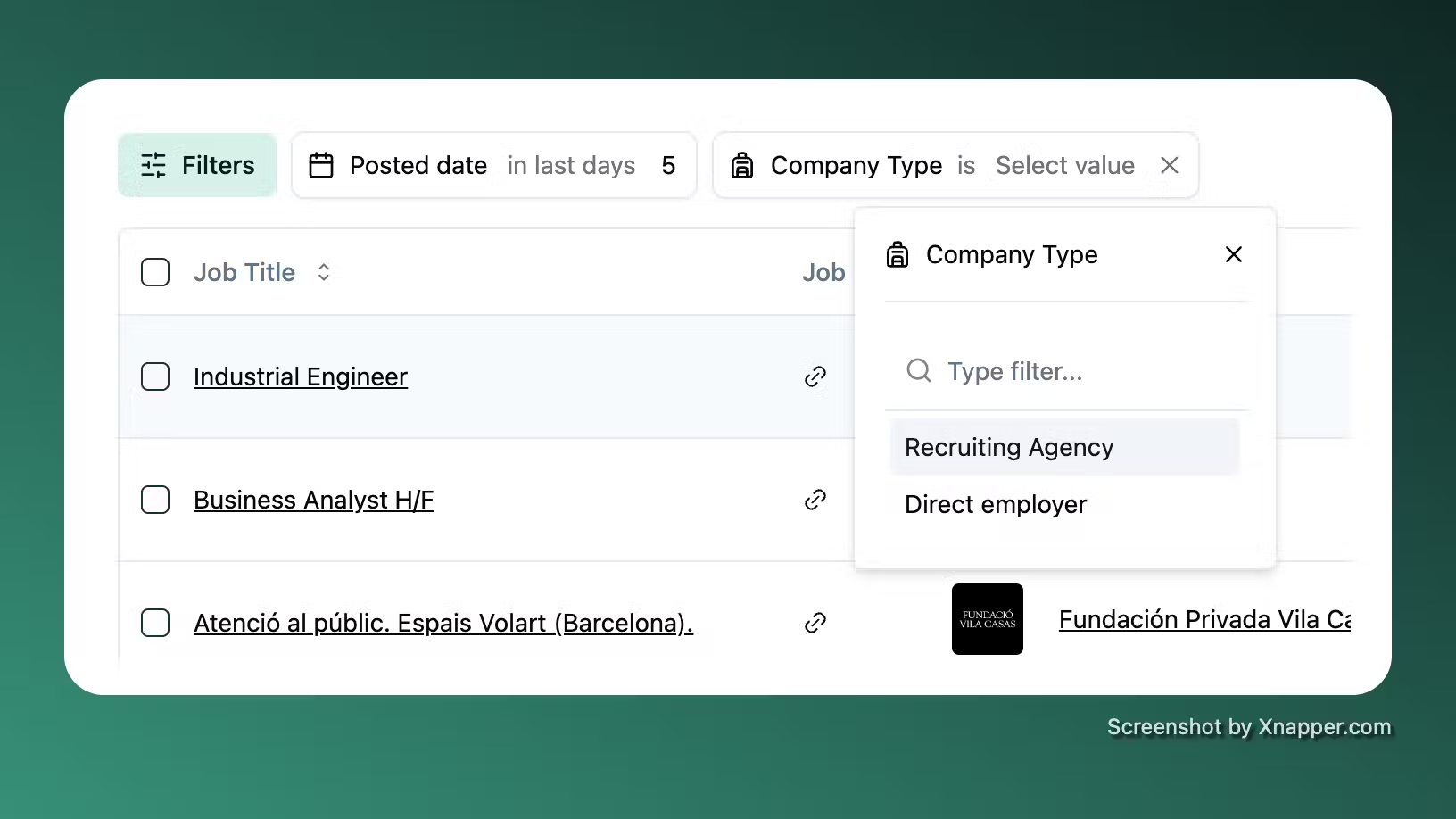
- Company type — Set to "Direct employer" to exclude recruiting agencies that post jobs on behalf of others.
- Employees — Target a company size range. Example: 100–1,000 for mid-market.
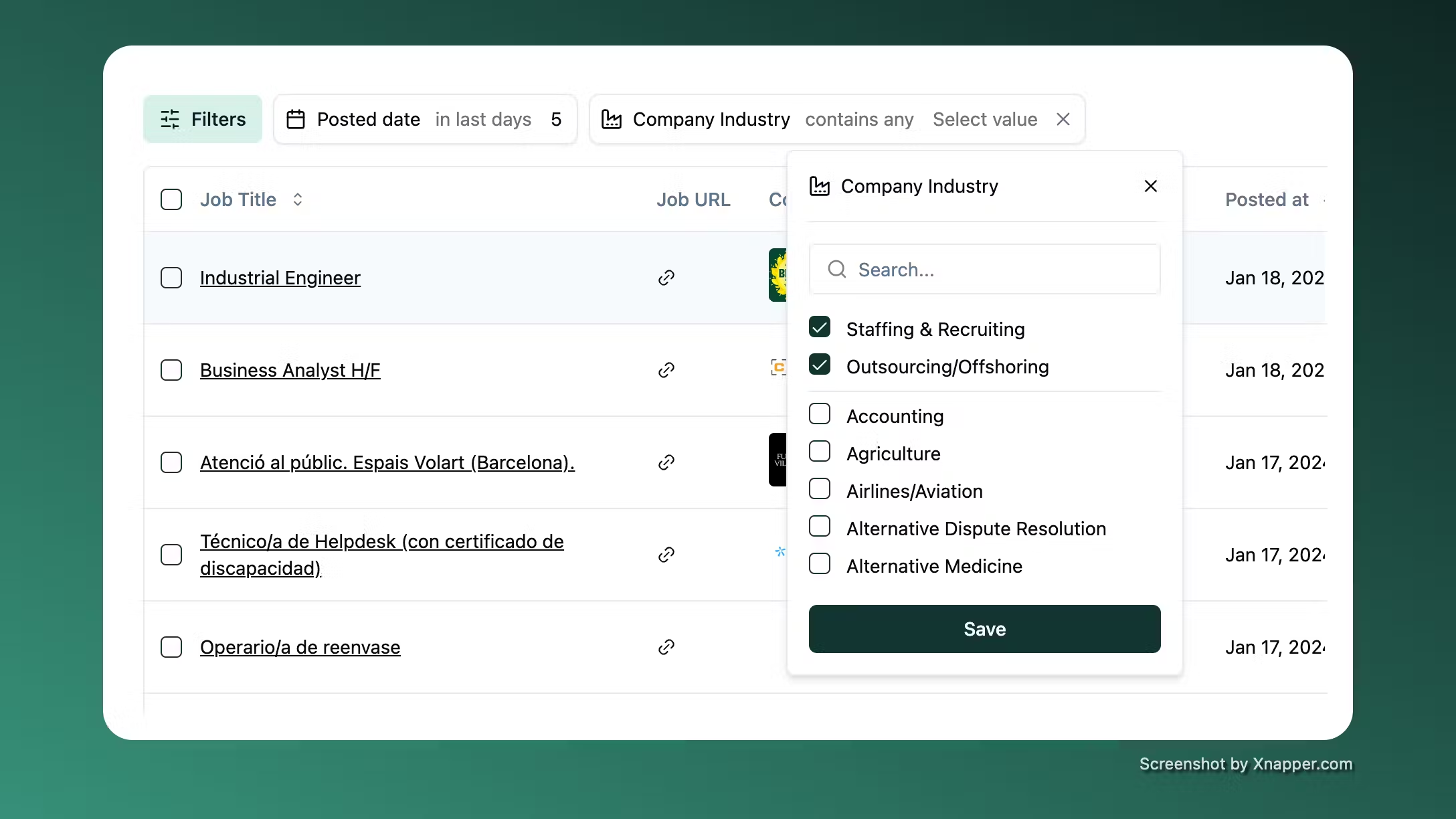
- Company industry — Include or exclude verticals.
-
Company technology — Find jobs from companies that use a technology, even if the specific posting doesn't mention it. "Company technology: Salesforce" returns every open role at Salesforce-using companies — not just CRM positions. This is different from "Job technology", which only matches jobs that mention the technology in the posting itself.
-
Company revenue / funding / funding stage — Target companies at a specific growth stage or budget.
-
Company list — Exclude companies from your "Already contacted" or "Customers" lists to avoid duplicates.
-
Company HQ country — Filter by where the company is headquartered, separate from where the job is located. A US company might post jobs in India.
Click Search again. This time, every result matches both your job criteria and your company profile — no more agencies or irrelevant companies.
Explore the refined results
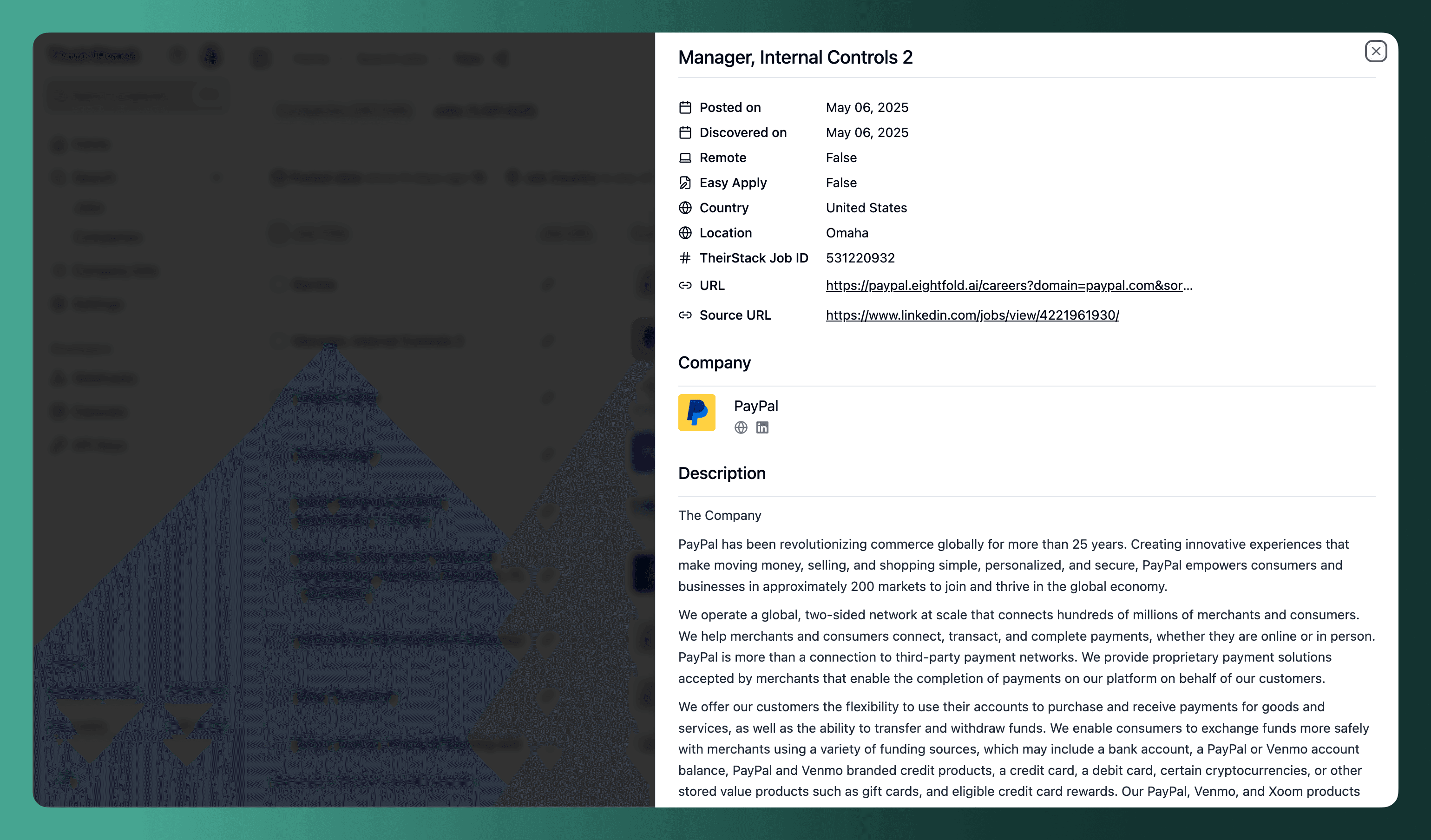
Click any job title to see the full posting — description, skills, salary, seniority, and the original source URL.
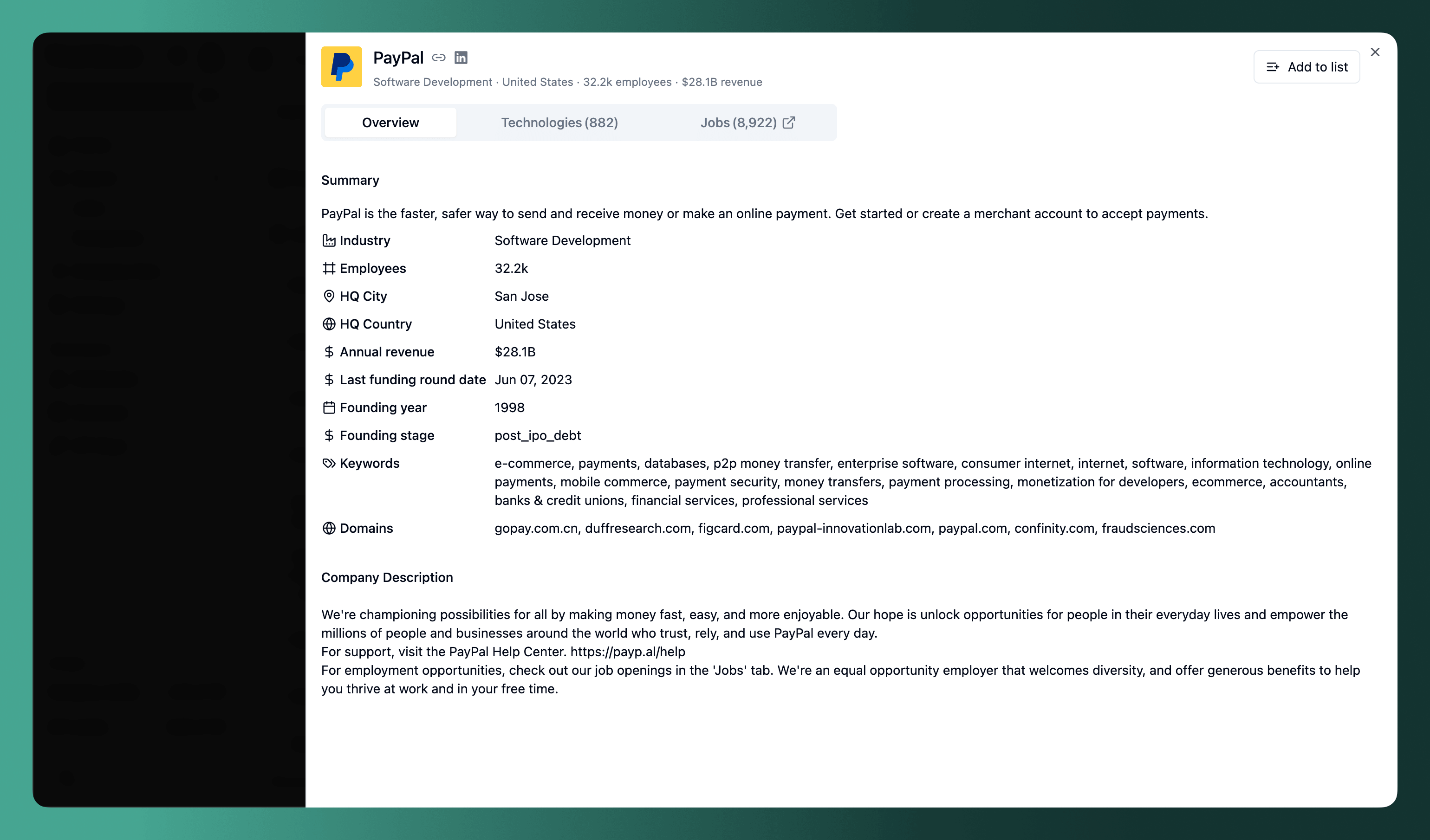
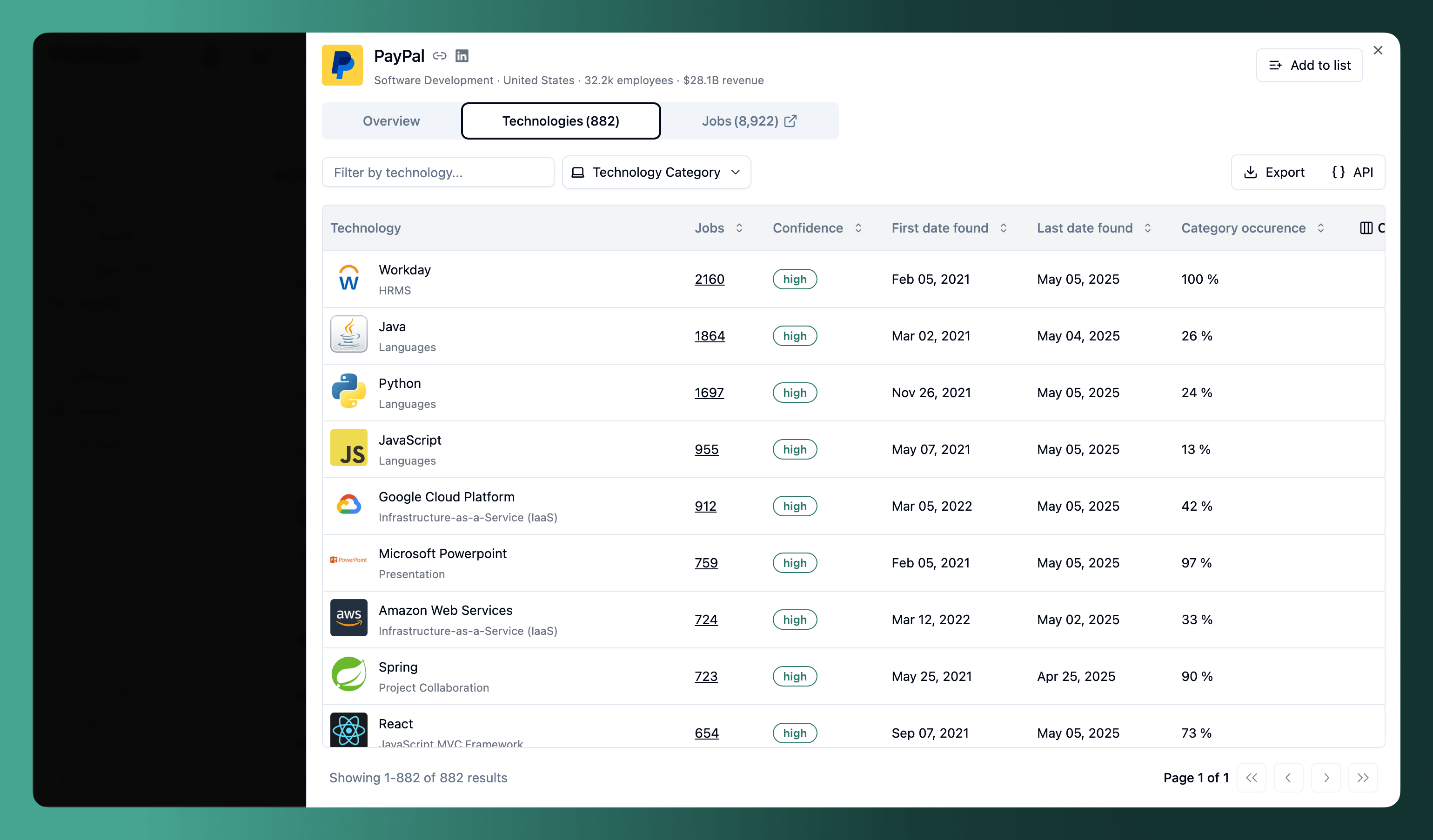
Click any company name to open their profile with headcount, revenue, funding, industry, full tech stack with confidence levels, buying intent topics, and a link to all their historical job postings.
Take action on results
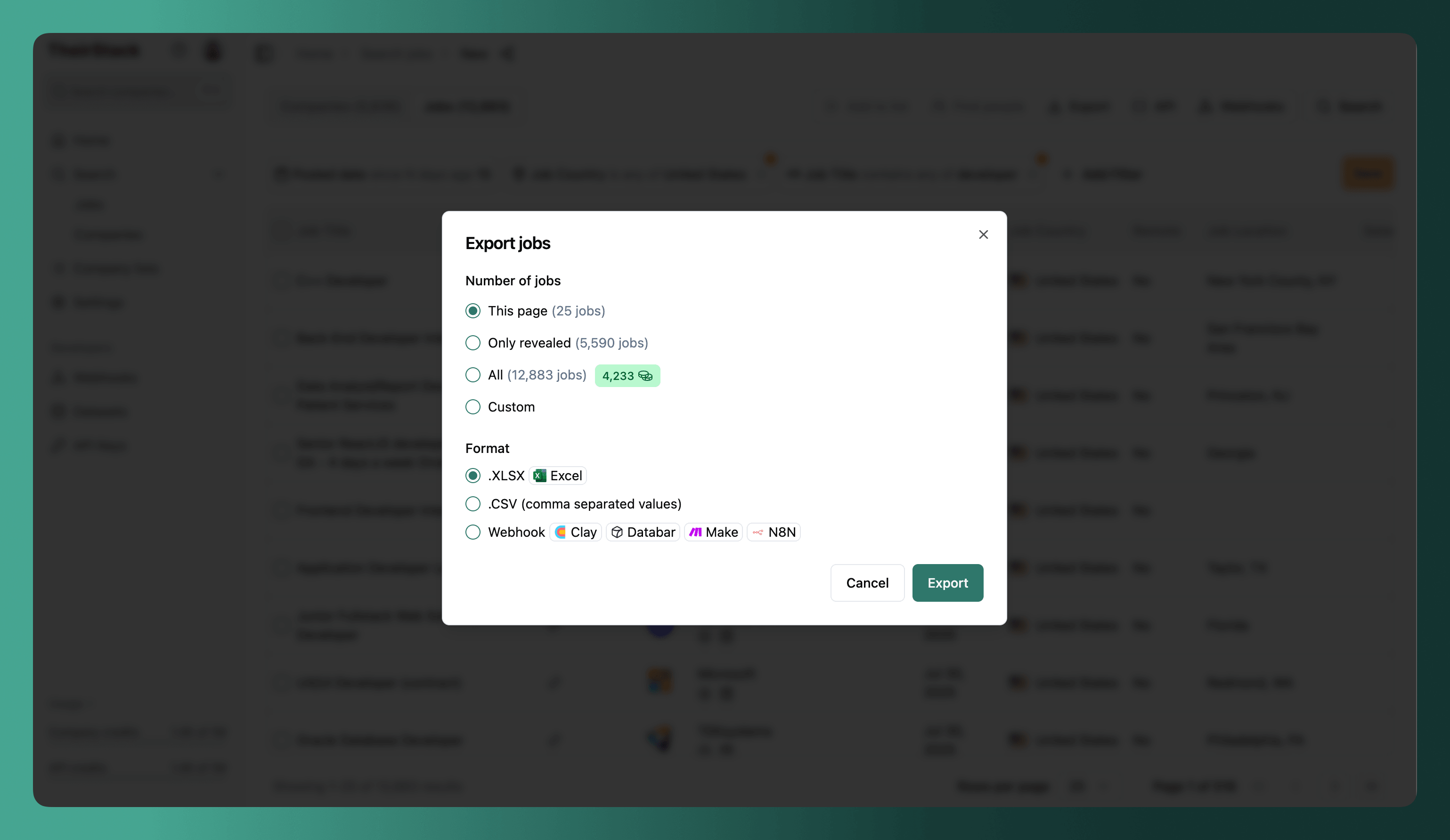
- Export to CSV, Excel, or webhook
- Find people at target companies via Apollo, LinkedIn Recruiter, LinkedIn Sales Navigator, or ContactOut
- Add to list to organize companies for tracking and deduplication
- Click API to get the cURL command that reproduces your search — use it programmatically or as a starting point for Make or N8N integrations
- Save the search with all its filters to reuse and duplicate later
- Email alerts — Get daily or weekly notifications for new matches. See Email Alerts
- Webhooks — Push new matches to Slack, your CRM, or any system in real-time. See How to monitor job postings automatically
- Share — Copy the search URL to share the exact query with a teammate
Tips
- Job technology vs. Company technology — Job technology finds jobs that mention a technology. Company technology finds all jobs at companies that use it. Use "Company technology: Snowflake" + "Job title: VP of Data" to find data leaders at Snowflake-using companies — selling beyond engineering.
- Discovered date vs. Date posted — Some sources are indexed with a delay. Use "Discovered date: last 24 hours" instead of "Date posted: last 1 day" to catch everything new since your last check.
- Combine include and exclude — Add the same filter twice with different operators. Example: Job title "contains any of: Engineer" + Job title "does not contain any of: Intern, Junior".
- Avoid re-contacting — After exporting, add companies to an "Already contacted" company list. In your next search, exclude that list. See how to avoid downloading the same companies twice.
Further reading
Job Search
Excluding recruiting agencies
Filtering out non-tech jobs
How to monitor job postings automatically
Find people
How is this guide?
Last updated on
How to Scrape Job Data for a List of Company Domains
Learn how to get job posting data for hundreds of company domains at once — without building scrapers. Query TheirStack's pre-indexed database of [[total_jobs]]+ jobs from [[total_job_sources]]+ sources by domain via the app or API.
How to send a slack message for every new job found
Step-by-step guide to automatically notify your team in Slack whenever new jobs are posted using TheirStack's webhook integration with Make, Zapier, or N8n.