Resources

Product updates

All the latest updates, improvements, and fixes to TheirStack

May 8, 2026

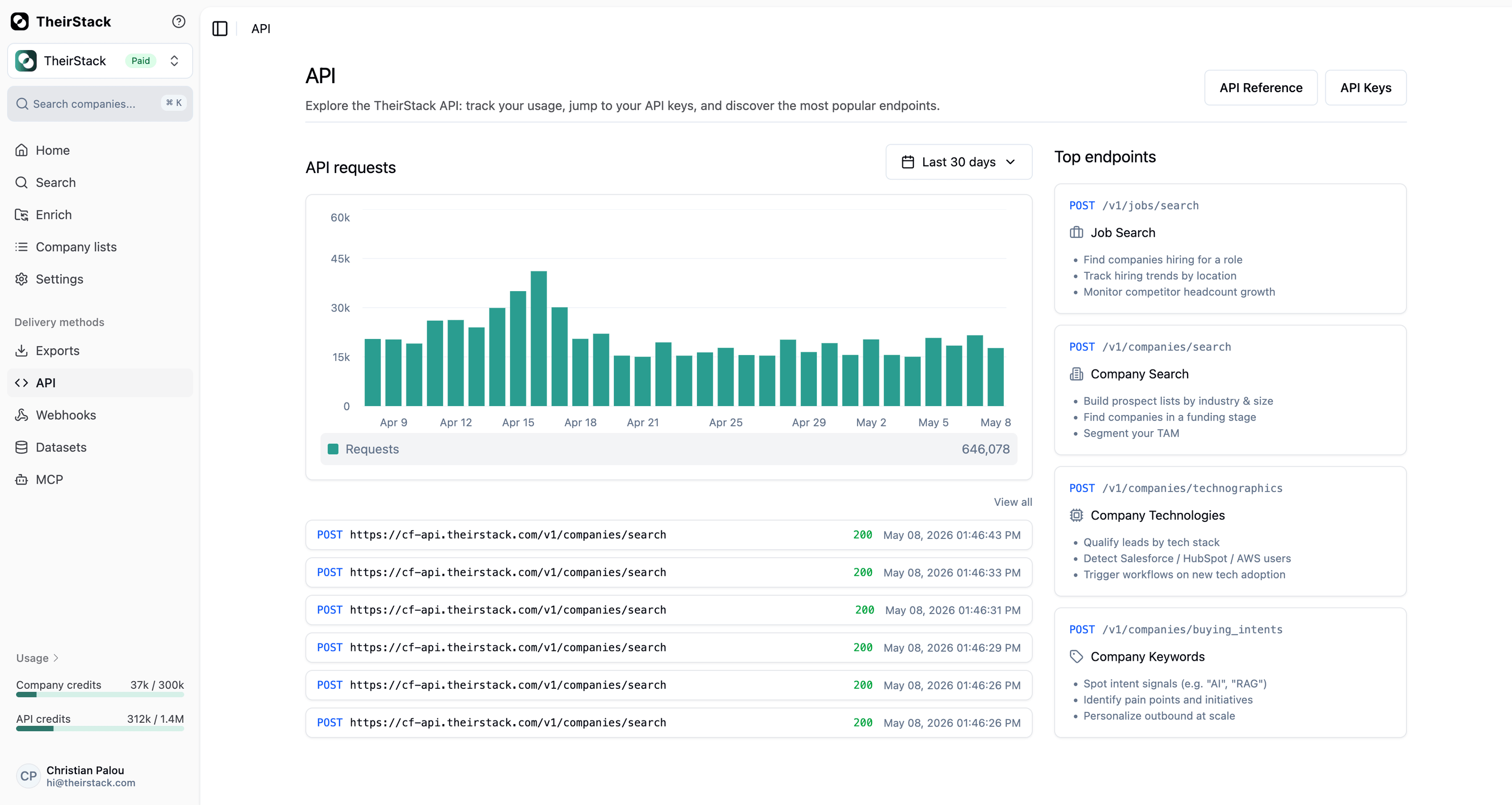
New API page: monitor your usage at a glance

New API page: monitor your usage at a glance

There's a new API entry in the sidebar — a single place to keep an eye on how you're using the TheirStack API.

What you'll find there

  • Requests over time. A chart of your API requests with a date range picker, so you can spot spikes, drops, or quota issues at a glance.
  • Recent requests. The last requests your account made, with one click to jump to the full request log.
  • Popular endpoints. A side panel with the most used endpoints — Job Search, Company Search, Company Technologies, and Buying Intents — each with example use cases and a direct link to the docs.
  • Shortcut to API Keys. One click from the top of the page to manage your keys.

If you've ever opened TheirStack just to check "is the API still working for me?", this is the page you wanted.

New MCP page: connect TheirStack to AI clients

New MCP page: connect TheirStack to AI clients

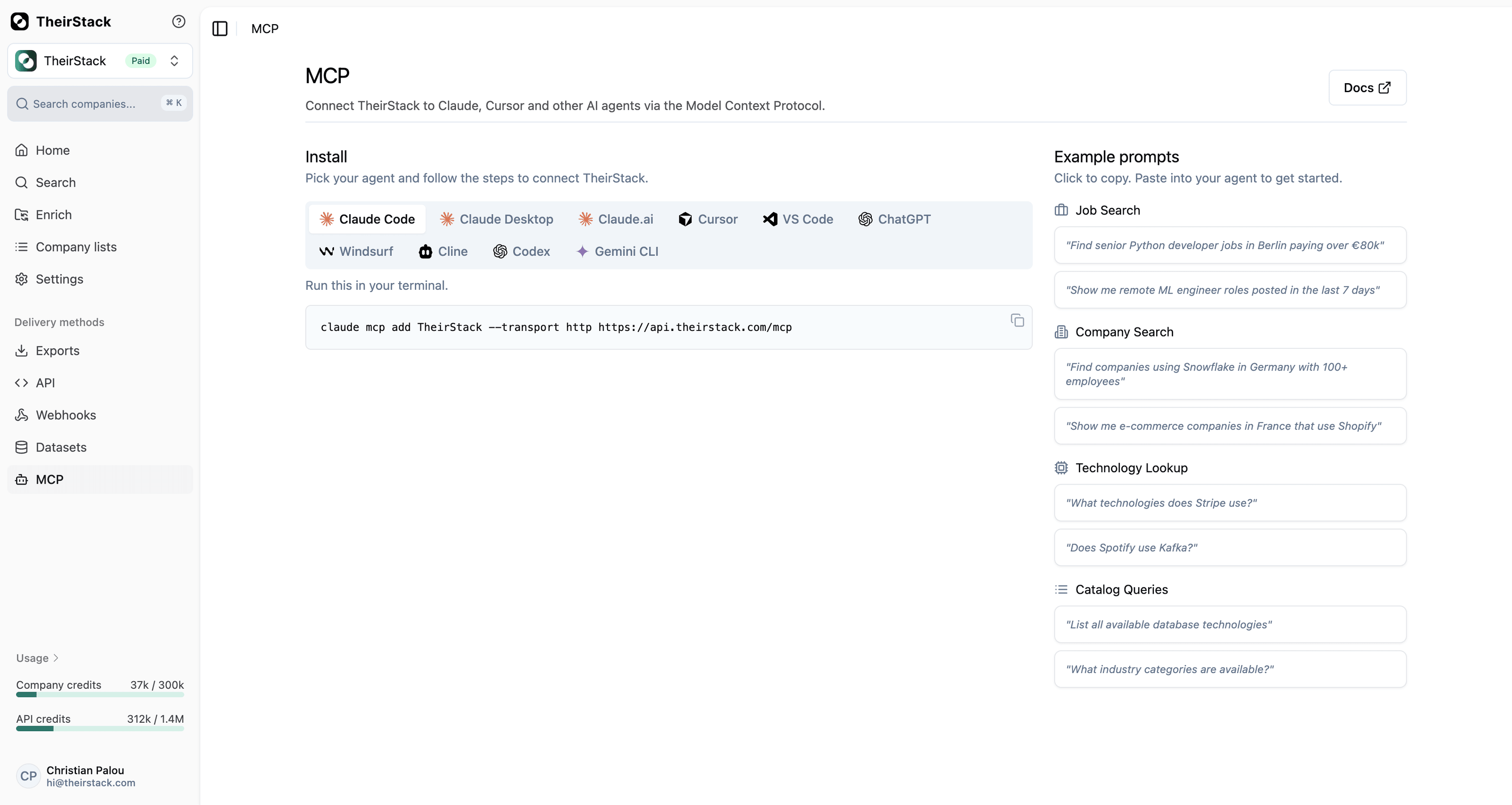
MCP lets AI assistants talk to TheirStack like any other tool — find companies, search jobs, look up technographics, all from a chat. We've had an MCP server for a while, but installing it meant hunting for the right config snippet for your specific client.

There's now a MCP page in the app that does that for you.

What's inside

  • One-click install snippets for Claude Code, Claude Desktop, Claude.ai, Cursor, VS Code, ChatGPT, Windsurf, Cline, Codex, and Gemini CLI. Pick your agent, copy the snippet, paste it where it belongs.
  • Example prompts you can copy with one click — things like "find SaaS companies hiring for Rust" or "list companies investing in AI strategy in the US" — so you don't have to figure out from scratch what the assistant is good at.

Open it from the sidebar under MCP, or read more in the MCP documentation.

New Use Cases page: ready-to-run examples

New Use Cases page: ready-to-run examples

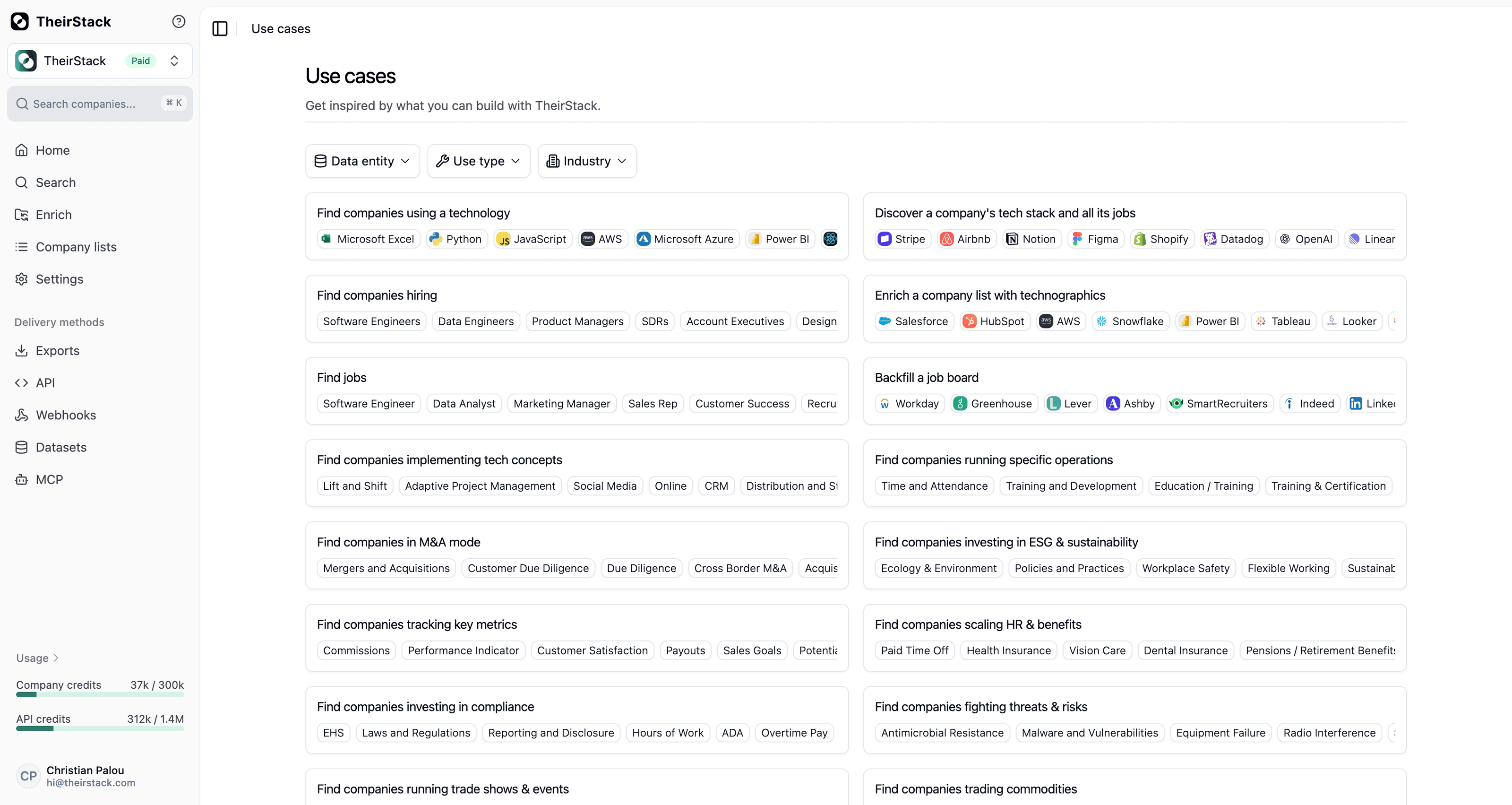
There's a new Use cases page in the app — a filterable gallery of ready-to-run examples to show you what's possible with TheirStack.

Each card explains the goal of the use case, the filters that power it, and lets you open it as a search in one click. No need to figure out the right combination of filters from scratch — start from a working example and tweak it.

A few examples of what's already in the gallery:

  • Find companies in M&A mode — companies actively integrating an acquisition, perfect for selling consulting or post-merger tooling.
  • Find companies investing in complianceGDPR, HIPAA, SOC 2. They have a real, active need.
  • Find companies investing in ESG & sustainability — companies hiring around sustainability or net zero goals.
  • Find companies scaling HR & benefits — those rolling out health insurance, 401k, or paid time off.
  • Find companies using Salesforce / HubSpot / Snowflake — straight technographic targeting on top brands like Salesforce, HubSpot, Snowflake, AWS, or any of 32k+ technologies we track.
  • Find companies running trade shows & events, buying safety equipment, trading commodities, working with government bodies… and more.

Each one is a real, tweakable starting point — open it, change a filter, and you've got your own list in a couple of clicks.

If you've ever wondered "what else can I do with TheirStack?", that's the page to start from.

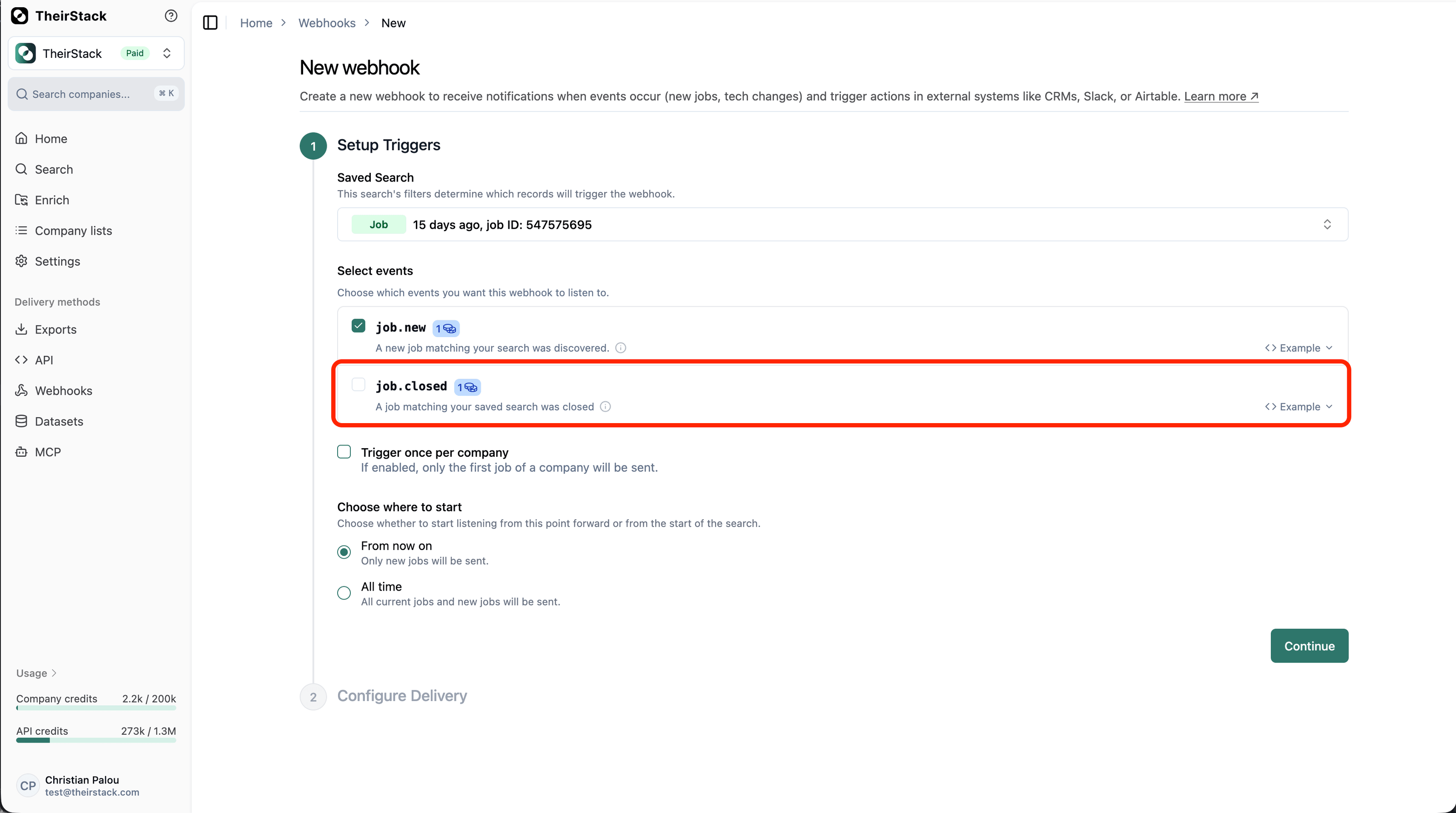
New Webhooks page: see at a glance which ones are firing

New Webhooks page: see at a glance which ones are firing

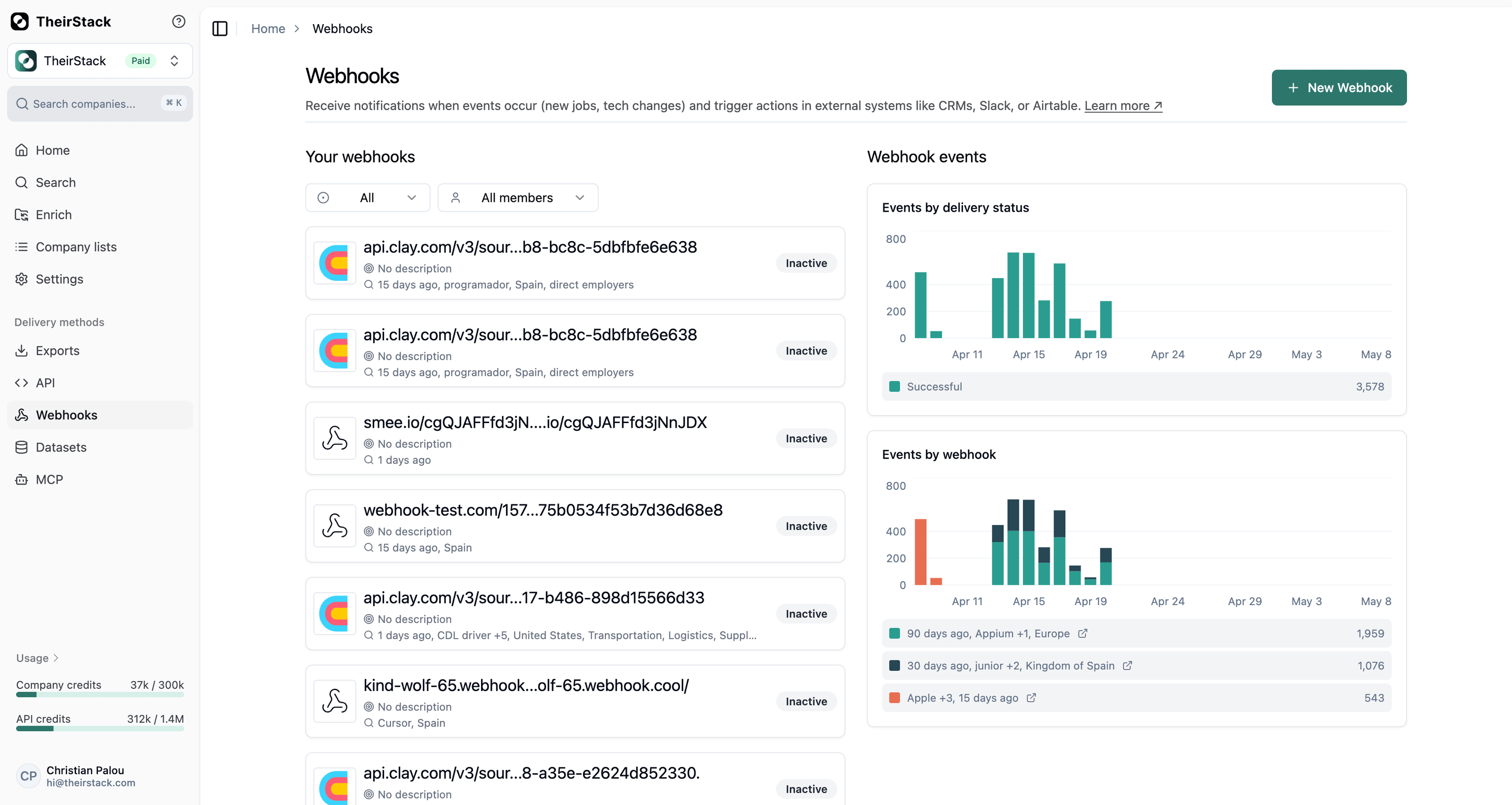
The Webhooks page got a full redesign so you can see how your webhooks are performing without clicking into each one.

What's new

  • Executions chart, side by side with the list. The page now has two columns: your webhook list on the left, and an executions chart grouped by webhook on the right. One look tells you which webhooks are firing the most, which ones went quiet, and which ones are erroring.
  • Filter by status. A new status filter lets you focus on Active, Inactive, Archived, or All. Defaults to Active so the noisy archived ones stay out of the way.
  • Filter by team member. On shared workspaces with many webhooks, filter the list to only the ones a specific teammate created.
  • No more gaps in the chart. The chart now plots every day in the range, even days with zero events — so trends are easier to read.

More on how webhooks work in the webhooks documentation.

May 5, 2026

Find people on Instantly.ai

Find people on Instantly.ai

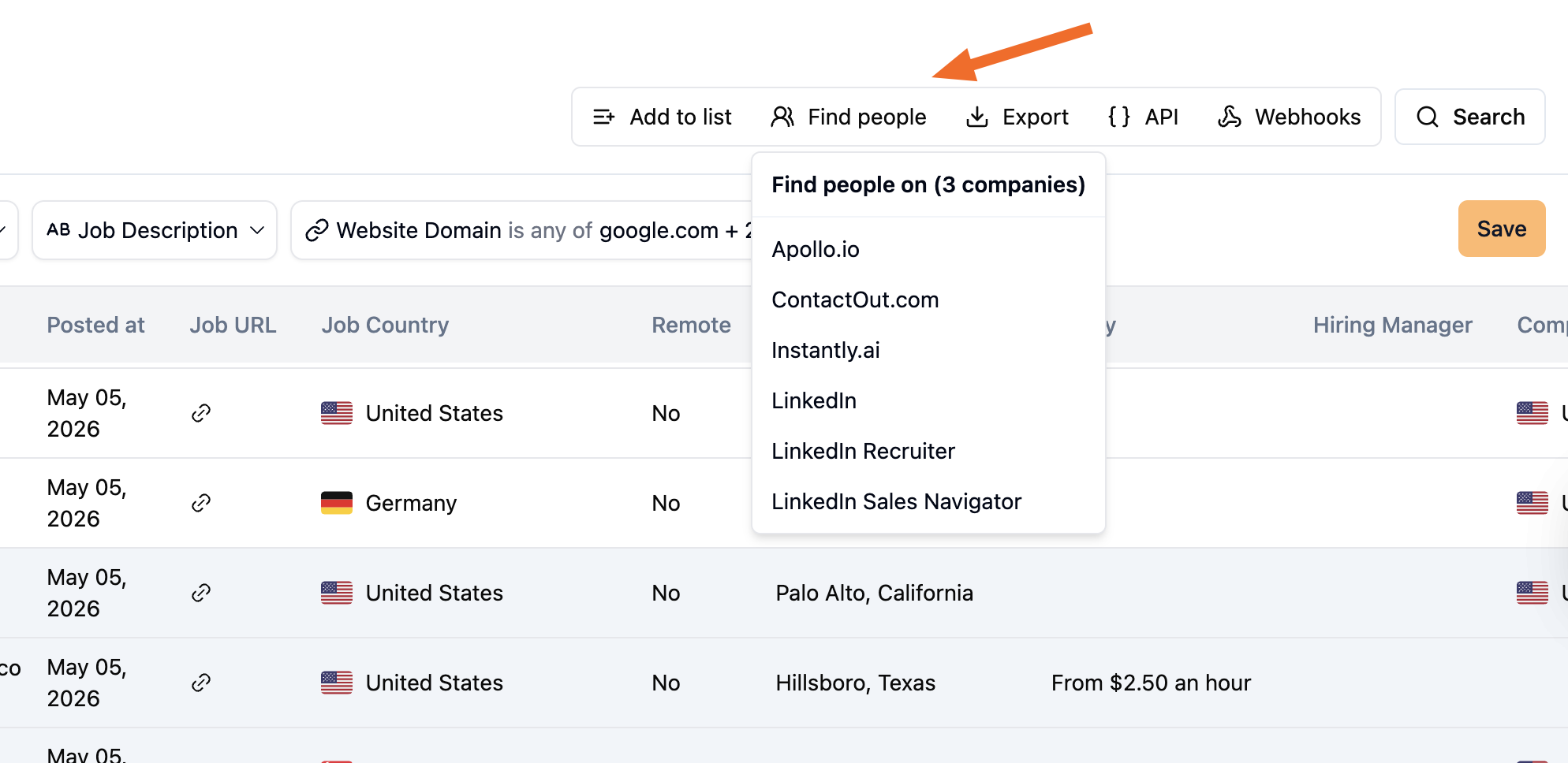
You can now find people on Instantly.ai directly from TheirStack's company search results.

How it works

  1. Select companies in any job or company search on TheirStack.
  2. Click Find peopleInstantly.ai.
  3. A new tab opens on Instantly's Lead Finder with the company domains and job titles already pre-filled.

Configure default roles

The job titles we pre-fill on Instantly come from your integration settings. Change them once and they'll apply across all integrations (Apollo, ContactOut, LinkedIn, and now Instantly).

Check out the full guide in our Find people documentation.

April 21, 2026

Job description regex filters are now case-sensitive

What changed: Regex patterns in job description filters (job_description_pattern, job_description_pattern_and, job_description_pattern_not) are now case-sensitive by default. Previously, all patterns matched case-insensitively.

Why: Case-sensitive matching gives you more control. You can now distinguish between acronyms like "AI" and words like "aid", or match "React" without catching "react" in unrelated contexts.

What to do if you need case-insensitive matching: Add the (?i) flag at the beginning of your pattern. Everything works exactly as before — you just need to opt in explicitly.

Examples

Before (case-insensitive by default)Now (add (?i) for case-insensitive)
\bpython\b(?i)\bpython\b
\bML.?Ops\b(?i)\bML.?Ops\b
data engineer|data scientist(?i)data engineer|data scientist

Without (?i), \bpython\b now only matches "python" in lowercase — it will not match "Python" or "PYTHON". With (?i), it matches all three, just like before.

API example

{
  "job_description_pattern_and": [
    "(?i)\\bpython\\b",
    "(?i)\\bML.?Ops\\b"
  ]
}

The (?i) flag works on all regex-based job description filters in the Jobs API and Company Search API, as well as in the app UI.

New filter: Seniority Level

New filter: Seniority Level

You can now filter job postings by seniority level, both in the app and the API.

We classify every job into one of five levels: Junior, Mid-level, Senior, Staff, and C-level. This lets you narrow results to the experience band you care about without relying on keyword tricks in the job title or description.

In the app

Open Job Search, click + Add Filter, and select Seniority Level. Pick one or more levels and the results update instantly.

Try it: Junior Software Engineer jobs in the US

In the API

Use the job_seniority_or parameter in the Jobs API or the Company Search API:

curl -X POST https://api.theirstack.com/v1/jobs/search \
  -H "Authorization: Bearer YOUR_API_KEY" \
  -H "Content-Type: application/json" \
  -d '{
    "job_country_code_or": ["US"],
    "job_title_or": ["software engineer"],
    "job_seniority_or": ["junior"],
    "posted_at_max_age_days": 30,
    "limit": 10
  }'

Accepted values: junior, mid_level, senior, staff, c_level.

Available now in Job search and the Jobs API.

Company Enrichment: technologies and intents

Company Enrichment: technologies and intents

Company Enrichment just got a major upgrade. It now lives on its own dedicated page with a guided workflow that supports both technologies and buying intent topics.

What changed

Previously, the enrichment flow only supported tech stack lookups via a small modal where you had to paste company identifiers. Now it's a full page accessible from the Enrich item in the sidebar, with a completely redesigned flow.

The biggest change: you now start by choosing what you want to enrich with — technologies, buying intent topics, or both — before providing your list of companies. This makes the experience more intentional and lets you browse the full catalog of available signals before committing your company list.

New guided flow

  1. Select technologies and intent topics — Browse and select from the full catalog of technologies and buying intent topics you want to check across your companies.
  2. Choose your input method — Pick between CSV upload or manual input.
  3. Provide your companies — Depending on your choice:
    • CSV Upload: Drag & drop a CSV file, then map columns (web domains, company names, or LinkedIn URLs) with auto-detection and preview.
    • Manual input: Paste or type company web domains, company names, or LinkedIn URLs directly.

Why this matters

  • Beyond tech stacks — Enrich companies with buying intent topics, not just technologies. Find companies showing purchase signals for the categories you care about.
  • Flexible input — Choose between CSV upload for bulk enrichment or manual input for quick lookups. No more being forced into one workflow.
  • Smarter flow — By selecting your enrichment criteria first, you avoid uploading a company list only to discover the signal you need isn't available.
  • Easier to find — Enrichment is now a first-class feature in the sidebar, not hidden behind a button on the home page.

Check out the full guide in our enrichment documentation.

April 16, 2026

New job description filter: match all regex patterns

The problem: You could search job descriptions with regex, but you couldn't require several patterns to all appear together. Building a search like "must mention ML Ops AND query performance" previously required constructing a combined regex of the form pattern1.*pattern2.*...*patternN — covering all N! permutations. That means dynamically generated, unmaintainable patterns that get extremely long and slow, and break entirely beyond a handful of patterns.

The solution: A new Matches all (regex pattern) operator on the job description filter. Provide multiple regex patterns; every pattern must match. Available via job_description_pattern_and in the Jobs API and Company Search API. Use | within a pattern for OR, and (?i) to make it case-insensitive.

Example: find ML Ops roles that also mention query performance

{
  "job_description_pattern_and": [
    "(?i)\\bML.?Ops\\b|\\bmachine learning operations\\b",
    "(?i)\\bquery optim\\w+\\b|\\bquery performance\\b|\\bslow quer\\w+\\b"
  ]
}

Returns jobs whose description matches every pattern — no permutations, no length limits.

Available now in Job search and Company search (click + Add Filter → Job Description), and in the Jobs API and Company Search API via job_description_pattern_and.

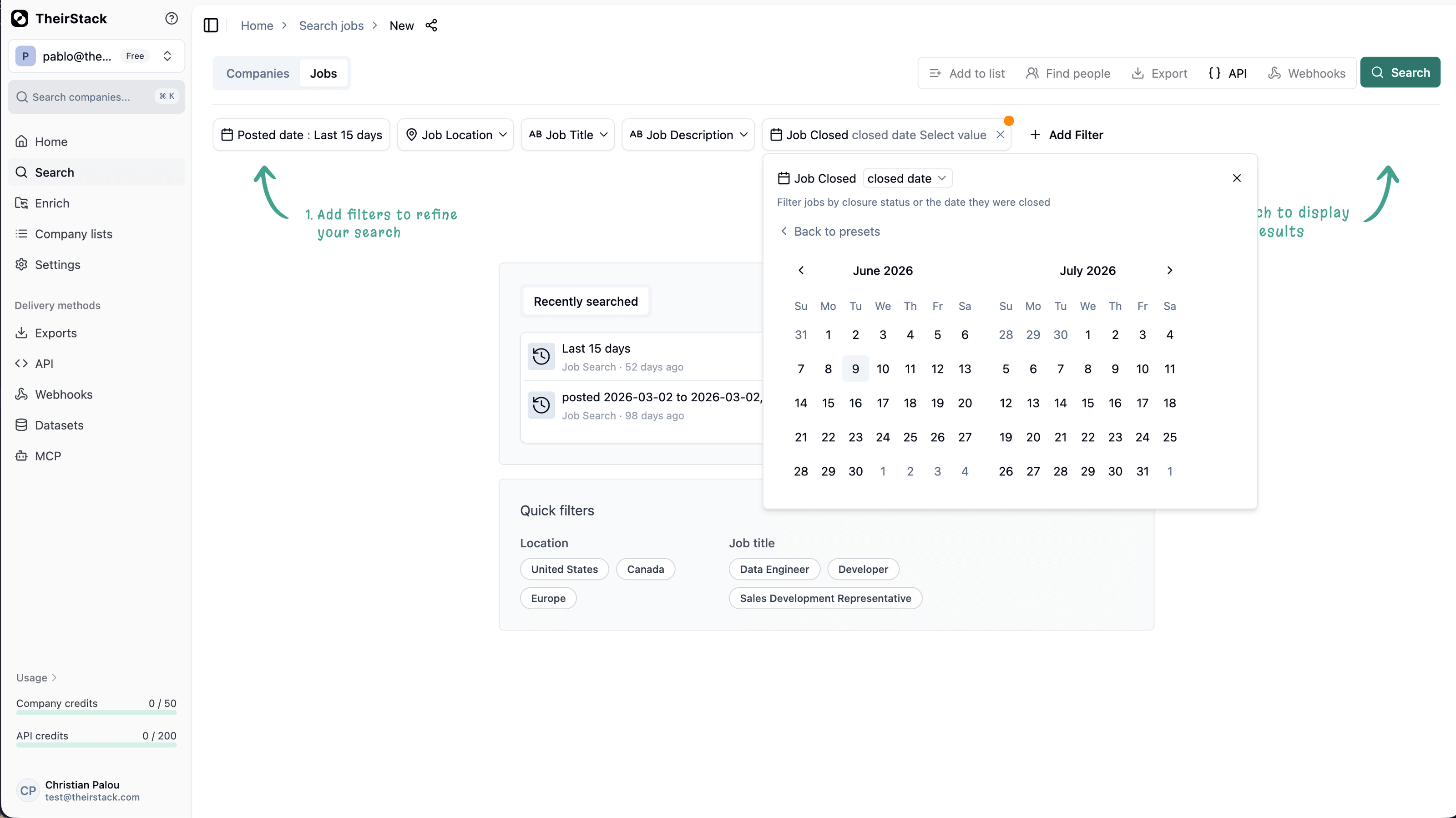
New job description filter: exclude keywords

The problem: You could search job descriptions for keywords, but you couldn't exclude them. Filtering out noise like "intern", "junior", or "entry level" required post-processing results by hand.

The solution: A new Does not contain any of operator on the job description filter, available in the app and the API. Exclude jobs whose description mentions any of the given words. Available via job_description_contains_not in the Jobs API and Company Search API.

{
  "job_description_contains_or": ["compliance", "regulatory"],
  "job_description_contains_not": ["intern", "junior", "entry level"]
}

Find companies actively hiring for compliance roles, excluding junior positions.

Available now in Job search and Company search (click + Add Filter → Job Description), and in the Jobs API and Company Search API via job_description_contains_not.

April 7, 2026

Know who's ready to buy: buying intent detection is live

Know who's ready to buy: buying intent detection is live

Sales and marketing teams with buying intent data have a simple advantage over the ones without: they know which prospects are ready to buy, so they stop wasting time and budget on the ones that aren't.

Until today, TheirStack only surfaced one kind of signal: what technologies a company uses. Powerful for technographic targeting, but it missed a whole category of buying signals. The compliance push, the equipment buy, the M&A integration, the strategic initiative that tells you a company is actively in-market for your product.

Jobs: the strongest intent signal there is

You should be selling pain killers, not vitamins. And there's no better place to find real pains than in job postings. TheirStack extracts buying intent signals from hundreds of millions of them, across 1.9k+ sources, refreshed every day.

Jobs let you find pains that are urgent, burning, and expensive:

  • ⚡ URGENT. Happening right now. We scrape jobs continuously. Find companies going through this pain at this very same moment, or subscribe to real-time signals and get them pushed to you the moment one appears.
  • 🔥 BURNING. Too big to ignore. Would a company hire a full-time person to fix something they could already solve with what they have? No. If the pain's in a job post, it's a problem they couldn't shake.
  • 💰 EXPENSIVE. Money is already on the table. Hiring is the most expensive fix for a problem. Six figures a year, plus the overhead of managing people and the time to find top talent. If a company is signing up for that, they'll happily pay you to fix it more efficiently.

Buying intent data is now live across TheirStack

We now detect over 9,000 buying intent topics from the millions of jobs companies post every day, alongside our existing 32,000+ technologies. Every signal is confidence-scored, linked back to the evidence (the exact job posting that triggered it), and refreshed daily.

Some things you can do with it today:

  • Sell compliance software. Find companies actively hiring for GDPR, HIPAA, or SOC 2 work. They have a real, active need and are likely between vendors.
  • Sell ERP or CRM alternatives. Spot companies whose job postings mention "ERP" or "CRM" as a software product keyword. They've raised their hand but may not be locked into a vendor yet.
  • Sell benefits administration. Companies posting jobs mentioning Health Insurance, 401k, and Paid Time Off are managing benefits manually. Sell them the platform.
  • Target companies in transformation. Filter for companies investing in Digital Transformation, AI Strategy, or Net Zero. They're actively changing. Sell them consulting, integration, or change management.
  • Sell industrial equipment & safety. Companies hiring around Solar Panels, Mining Safety Equipment, or Industrial Robots are actively purchasing.

The full catalog: 14 categories, 9,000+ topics

Keyword typeKeywordsExample signalsWhy it matters for sales
Technology32,390PostgreSQL, Kubernetes, SnowflakeCore technographic targeting
Technology Concept2,841Lift and Shift, Data Analytics, Project ManagementCompanies adopting new methodologies
Operational Activity1,504Compliance (1,159 companies), Audits, Background ChecksCompanies scaling operations. Sell process automation, GRC tools
Product or Service Offered1,148Health Insurance (744 cos), 401k, Paid Time OffCompanies offering benefits. Sell benefits platforms, payroll tools
Physical Equipment746Solar Panels, Industrial Robots, Mining Safety EquipmentCompanies buying hardware. Sell equipment, safety solutions, IoT
Metric or Concept641Customer Satisfaction (237 cos), Sales Goals, Performance IndicatorsCompanies focused on growth metrics. Sell analytics, CX tools
Strategic Initiative531Digital Transformation, Sustainability, Net Zero, AI StrategyCompanies undergoing transformation. Sell consulting, change management
Software Product525CRM, ERP, Point of Sale, HRISCompanies mentioning software needs. Sell alternatives or integrations
Regulation494GDPR, HIPAA, SOC 2, Anti-Money LaunderingCompanies navigating compliance. Sell compliance/legal tech
Industry Vertical394Hotels & Accommodations, Colleges & Universities, Medical FacilitiesIndustry-specific targeting for vertical SaaS
Threat or Risk191Carbon Monoxide Poisoning, Palmer Amaranth, Soybean Cyst NematodeCompanies facing specific risks. Sell mitigation solutions
Medical Research126COVID-19 (121 cos), Immunization, Stem Cell, Coronary Artery DiseasePharma/biotech R&D targeting
Event120Trade Shows (950 cos), Holidays & Seasonal EventsCompanies investing in events. Sell event tech, marketing services
Commodity83Carbon Dioxide, Liquid Hydrogen, Low-Carbon AmmoniaCompanies in commodity markets. Sell trading, logistics, sustainability tools
Government Body78State/Local/Municipal (1,433 cos), Port Authority, Board of DirectorsCompanies working with government. Sell GovTech, procurement tools

How to get buying intent data into your workflow

Four ways to use it, depending on how you sell:

  • In-app search. Open Job search or Company search, click + Add Filter, pick "Buying Intent Topic", and go. Works in both job-level and company-level search.
  • API. New keyword_slug_or / keyword_slug_and / keyword_slug_not filters in Jobs search and Company search. Plus a dedicated POST /v1/companies/buying_intents endpoint to look up any company by domain and get its full buying intent profile.
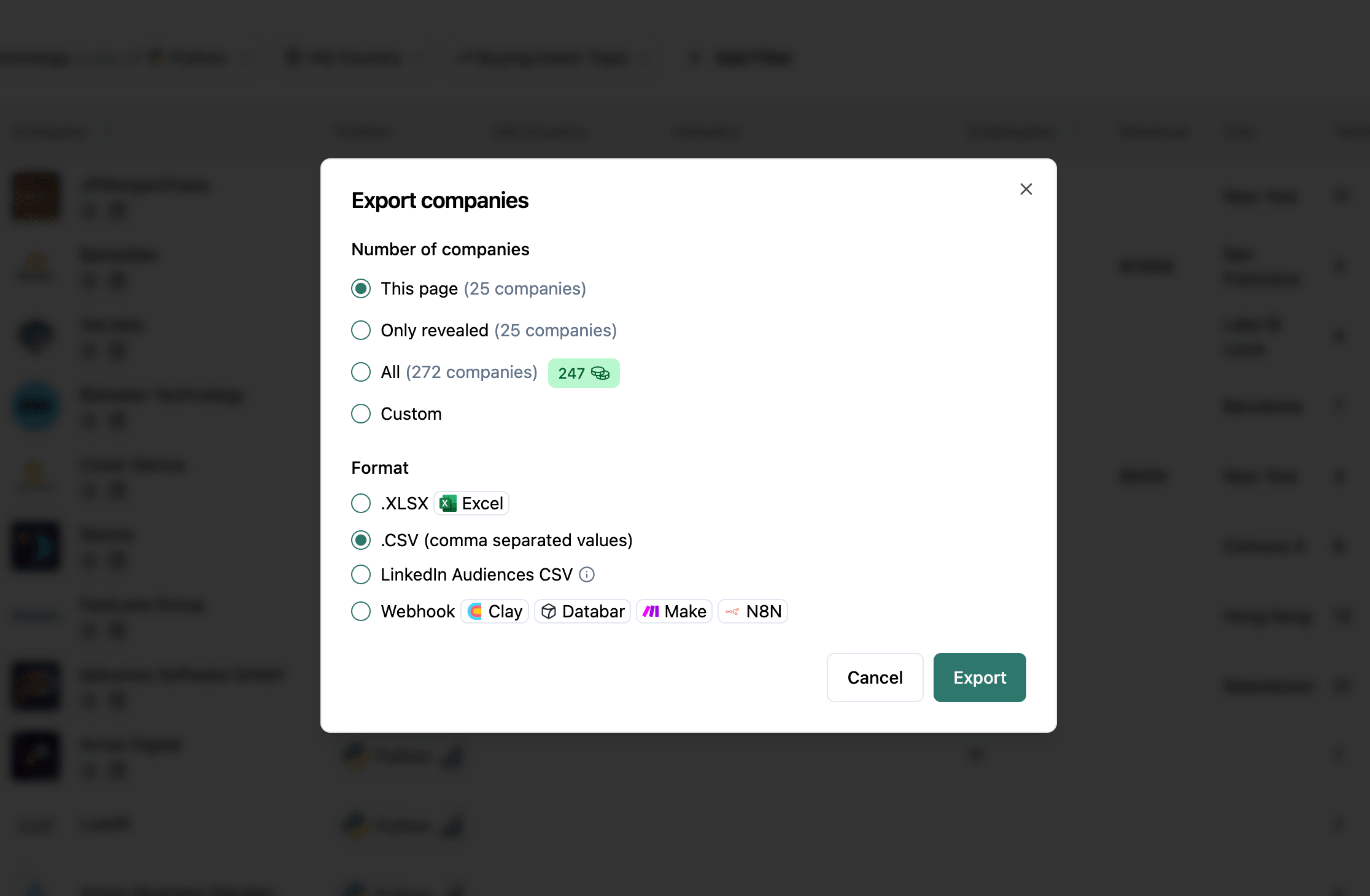
  • Real-time signals. Subscribe to a topic and get notified the moment a new company starts investing in it. Delivered via webhook, Zapier, N8N, or Make. Perfect for sales teams that don't want to check a dashboard every morning.
  • Bulk dataset. The full buying intent dataset delivered daily to your S3 bucket. For data teams, CRM enrichment pipelines, and analytics workloads.

The Buying Intents landing page has the full overview, and the docs cover the underlying data model and how we score confidence.

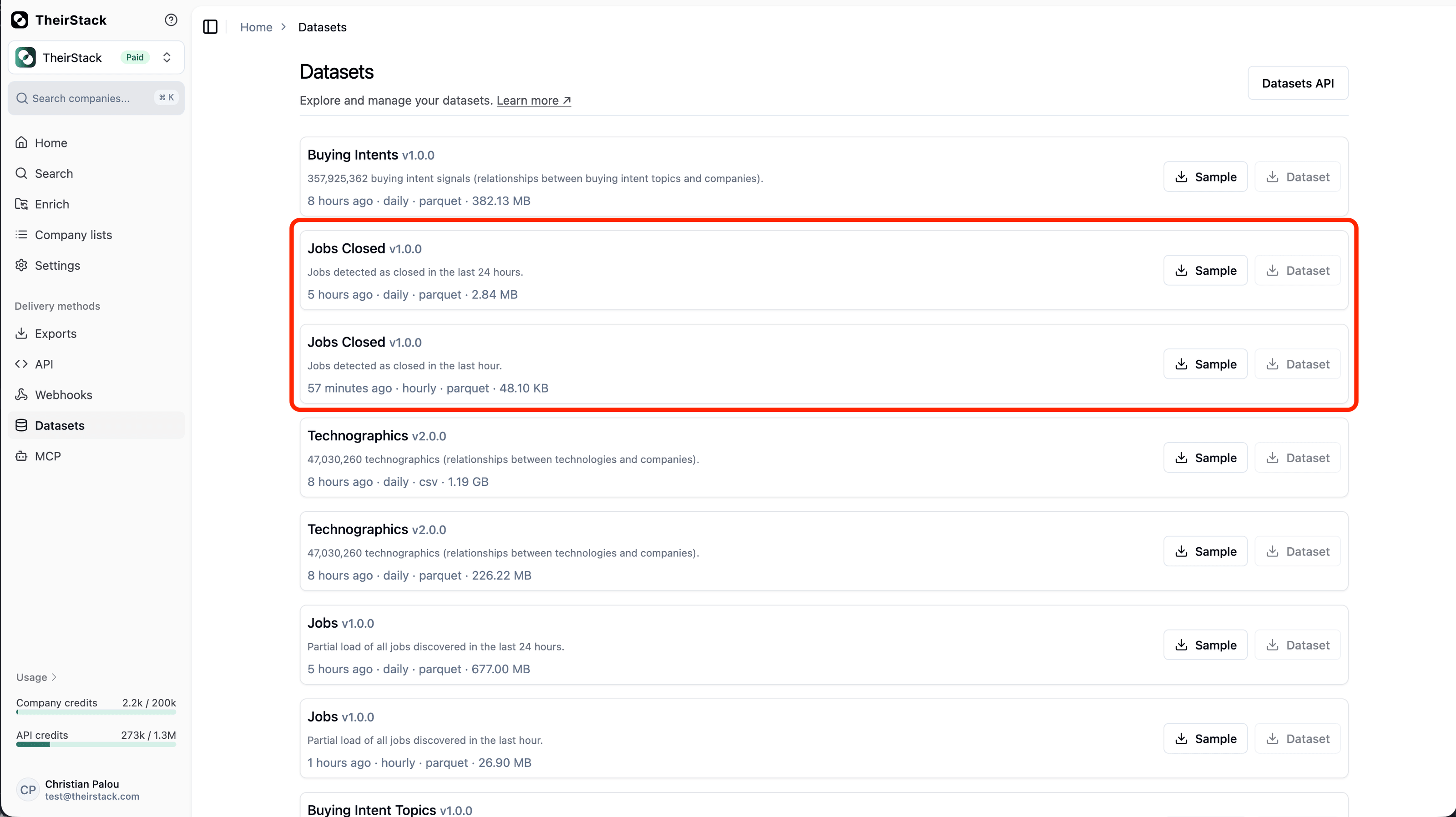
Hourly job datasets

Job datasets are now available with hourly granularity. Same Parquet format, same API — just partitioned by hour instead of by day. Files follow the path jobs/hourly/YYYY/MM/DD/HH/data.parquet, so integrating into your existing pipelines is straightforward.

An hourly subscription also includes access to daily and today's jobs datasets, so you don't lose anything — you just get data sooner.

  • Fresher data — Access job postings within the hour they're detected.
  • Backward compatible — Same schema, same tools. Just more granular.
  • Includes daily access — No need to maintain a separate daily subscription.

Learn more about how datasets work or how to access them via direct download or S3 bucket credentials.

April 6, 2026

Actions menu on saved search detail pages

Actions menu on saved search detail pages

You can now archive, duplicate, or toggle alerts on a saved search directly from its detail page. A new three-dot menu sits next to the share button, giving you the same actions that were previously only available from the home page list.

  • Archive — Archive the search and get redirected back to home.
  • Duplicate — Create a copy instantly. The confirmation toast includes a link to open the new search right away.
  • Enable / disable alerts — Switch daily or weekly alerts on or off without leaving the page.

This applies to both job searches and company searches.

March 27, 2026

Webhook signing secrets for payload verification

Webhook signing secrets for payload verification

Your webhooks can now include a signing secret so every delivery is cryptographically signed.

Until now, there was no built-in way to confirm that an incoming payload actually originated from TheirStack—your endpoint had to rely on source IP or URL alone.

Set a signing secret (minimum 16 characters) and every delivery will carry an X-TheirStack-Signature-256 header containing the HMAC-SHA256 signature of the raw payload. Recompute the HMAC on your side and compare to confirm authenticity and integrity.

In practice:

  • Payload authenticity — Know for certain each delivery was sent by TheirStack, not a third party.
  • Tamper detection — Any modification to the payload in transit will cause the signature check to fail.
  • One-click setup — Generate a secret directly in the webhook form, or bring your own. Also available via the webhooks API.

See the verification guide for code examples and step-by-step instructions.

March 6, 2026

Improved source filter with multi-source matching

Improved source filter with multi-source matching

The problem: When filtering jobs by source domain, only the direct URL was checked. If a job was posted on a company career page but discovered through a job board like LinkedIn or Indeed, filtering by that job board wouldn't return it. You also had no visibility into how many jobs each source had.

The solution: The source filter now matches against both the job URL and the original source URL. When typing a domain, you get autocomplete suggestions showing the number of jobs per source—so you can quickly find and pick the right one.

  • Multi-source matching — Filtering by "linkedin.com" now returns jobs originally discovered on LinkedIn, even if the job URL points to the company's career page.
  • Job count suggestions — Domain suggestions show how many jobs are associated with each source, helping you pick the most relevant one.
  • source_url in API responses — The job API now returns a source_url field alongside url, so you can see both where the job lives and where it was found.

March 4, 2026

New API keys section and workspace-wide management

New API keys section and workspace-wide management

We've added a dedicated API keys section in workspace settings.

Previously, you couldn't set expirations, revoke keys without losing history, or see all workspace keys in one place.

Now you get one screen per workspace with optional expiration when creating a key and revoke when you need to—usage history is preserved.

In practice:

  • One place for all keys — See and manage every API key in the workspace from one screen.
  • Expiration dates — Create keys that expire on a chosen date for temporary access or safer sharing.
  • Revoke instead of delete — Revoke a key when it's compromised or no longer needed; you keep visibility into past usage.
  • Workspace-scoped — Keys belong to the workspace, so switching workspaces shows the right set of keys.

The new API keys section is available in your workspace settings. We'll keep improving how you control and audit API access.

Workspaces have arrived at TheirStack

Workspaces have arrived at TheirStack

We've added workspaces so you can switch between them, create new ones, and edit their details—all from the sidebar.

Previously, keeping work for different teams or projects separate meant either logging in and out or mixing company lists, saved searches, and settings in a single account.

Now you can switch workspaces in one click from the sidebar. Company lists, saved searches, and settings stay separate per workspace. You can create new workspaces (up to 5 as owner) and edit names and details whenever you need to.

What this means for you:

  • Switch without switching accounts — Move between workspaces in one click; no need to log out or lose context.
  • Separate spaces for teams or clients — Use one workspace per team or client, or create one just for yourself.
  • Full control — Create workspaces, edit names and details, and keep company lists and saved searches scoped to each workspace.

Workspaces are available now in the sidebar. We'll continue to improve how you organize and switch between your work.

February 25, 2026

New Support Center

New Support Center

The problem: Submitting feedback or requesting a missing technology required filling out an external form with no way to track your request's status.

The solution: A new Support Center lets you create and track requests directly inside the app. To get there, click the help icon (?) in the top-left of the sidebar, select "Contact support", and click the "New ticket" button.

Choose from five categories:

  • Request a Technology or Buying Intent — Ask us to track a new technology, skill, certification, or topic we don't cover yet
  • Report a bug — Something isn't working as expected
  • Request a feature — Suggest a new capability
  • Share feedback — Tell us what you think
  • Other — Anything else (free text)

Step 1: Choose a ticket category

Each category has a guided form. You can attach screenshots and track your request's status from the tickets list.

Step 2: Fill out the form

You can also request a new technology directly from the technology filter — if your search doesn't match any known technology, click "request a new technology" in the dropdown.

Step 3: Request a new technology from the filter